
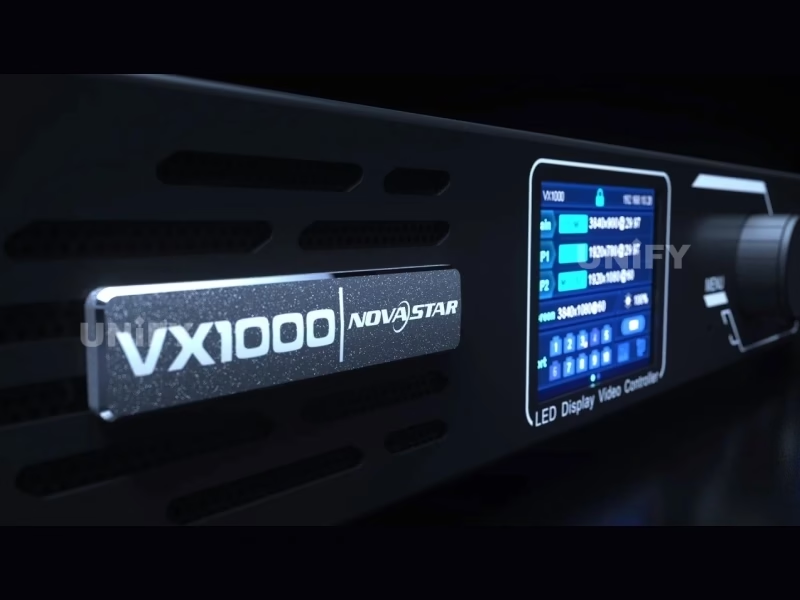
All-in-One LED Display Controller

NovaStar VX1000 LED Display Controller — The 6.5-Million-Pixel All-in-One Video Processor for Professional LED Walls

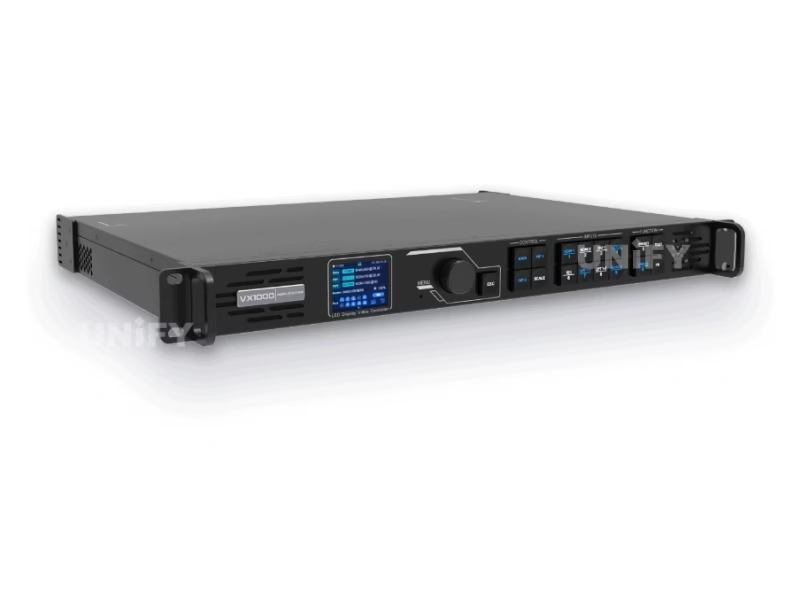
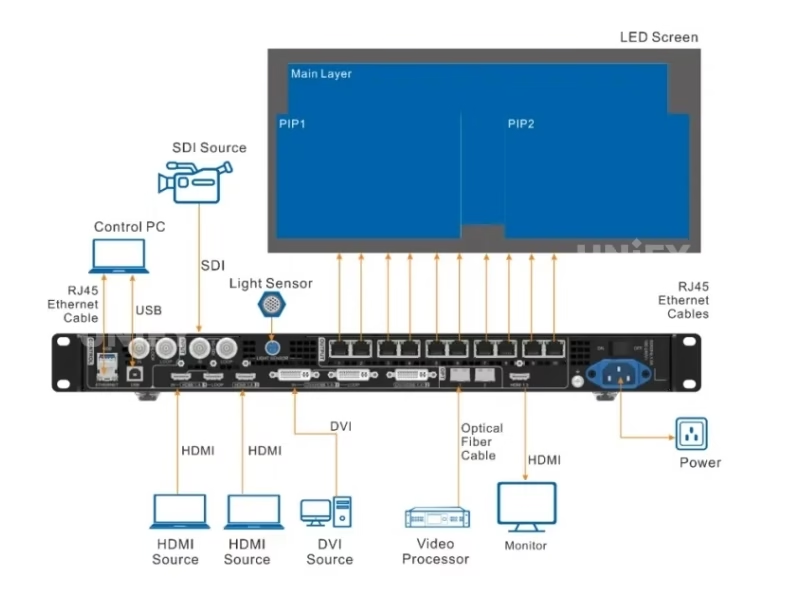
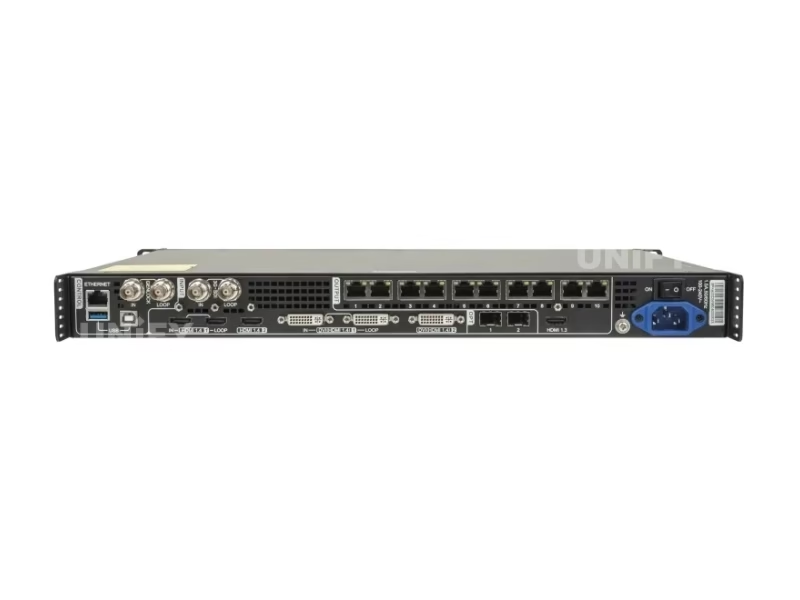
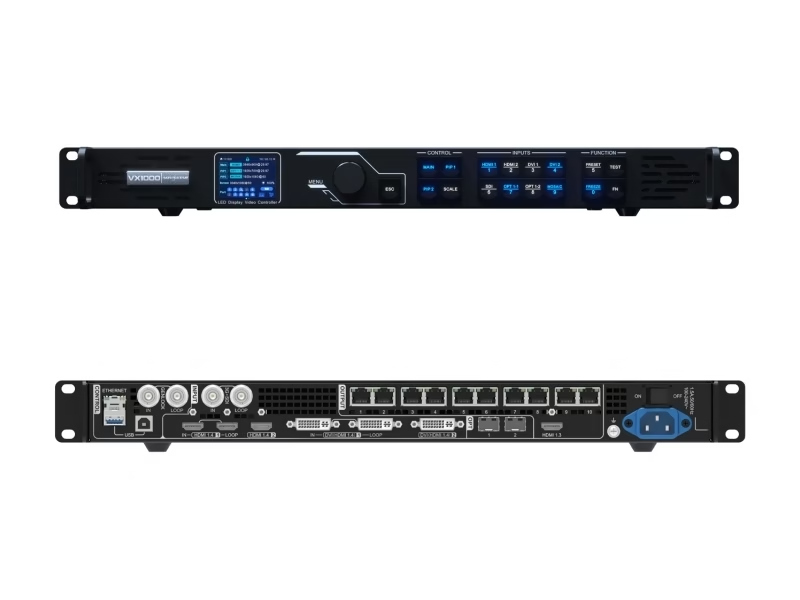
NovaStar VX1000 front and rear panel view showing all ports


A 1U rack-mount controller that combines 4K video processing and LED signal sending into a single device. Ten Gigabit Ethernet ports. Three independent 4K layers. One box replaces your video processor and sending card.

⚡ 6.5 Million Pixels
🔌 10× Gigabit Ethernet
📊 3× 4K Layers
🎞 4K×1K@60Hz Input

What Is the NovaStar VX1000 All-in-One Controller?

In a traditional LED display system, you need two separate devices: a video processor to handle input scaling and a sending card to distribute the signal to LED cabinets. The VX1000 merges both functions into a single 1U chassis, reducing cabling complexity, eliminating compatibility issues, and lowering the total system cost for medium-to-large LED installations.

🌐

3 Working Modes

Video Controller, Bypass Mode, and Fiber Converter — switch via front panel LCD in seconds.

🔌

Redundant System

Input source, Ethernet port, device-level, and configuration file redundancy for mission-critical events.

SuperView III Engine

Stepless output scaling, pixel-level brightness & chroma calibration, and 3D support with EMT200 emitter.

20-Line Low Latency

In Bypass mode, delay is reduced to just 20 lines — critical for live camera feeds and broadcast.


One VX1000 unit drives up to 6.5 million pixels with a maximum output width of 10,240 pixels and height of 8,192 pixels. For larger screens, up to 4 units can be linked in image mosaic mode. Whether you’re building a stage LED screen for a concert tour or a fine-pitch indoor LED display screen for a corporate lobby, the VX1000 delivers consistent, artifact-free 4K output across every cabinet.

NovaStar VX1000 Technical Specifications

All parameters verified against the official VX1000 Specifications V1.4.0 datasheet. Every figure below is measured, not estimated.


Parameter Specification
Max Loading Capacity 6.5 million pixels
Max Output Width 10,240 pixels
Max Output Height 8,192 pixels
Max Input Resolution 4K×1K @ 60Hz (3840×1080@60Hz / 3840×2160@30Hz)
Ethernet Output Ports 10× Gigabit RJ45 (650,000 pixels per port)
Video Inputs 2× HDMI 1.4 (1 IN + 1 LOOP), 2× DVI/HDMI 1.4, 1× 3G-SDI
Optical Fiber Ports 2× 10G OPT (OPT1: input/output auto-adaptive, OPT2: output)
Monitoring Output 1× HDMI 1.3 (fixed 1920×1080@60Hz)
Image Layers 3 layers (1 Main + 2 PIP), free scaling per layer
Presets Up to 10 user-defined presets
Genlock Bi-level & Tri-level sync (Genlock IN + LOOP)
3D Support Yes (requires EMT200 3D emitter, sold separately)
Latency (Bypass Mode) 20 lines with low latency function enabled
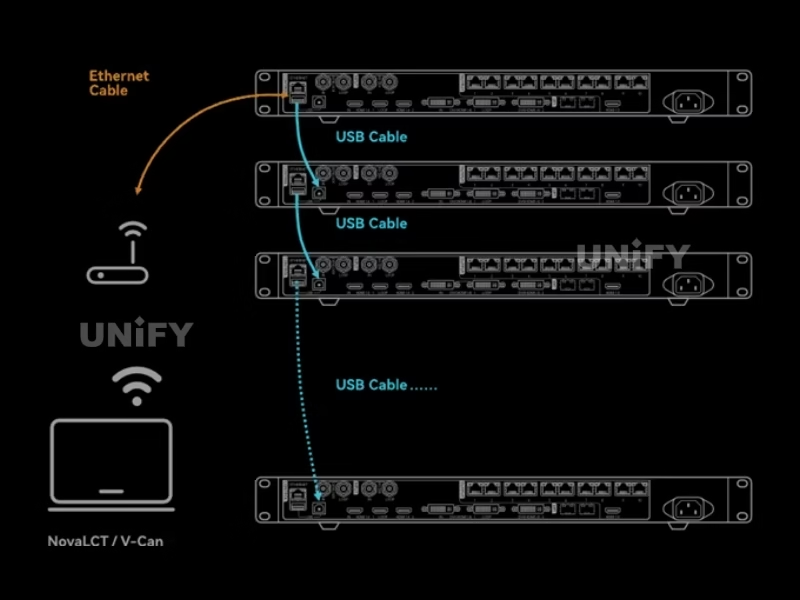
Control Connectors 1× RJ45 Ethernet (PC), 1× USB Type-A (PC), 1× USB Type-B (cascading)
Rated Power Consumption 35W (max), 28W (typical)
Input Voltage AC 100–240V, 1.5A, 50/60Hz
Operating Temperature 0°C to 45°C
Dimensions (W×D×H) 483.6 mm × 351.2 mm × 50.1 mm (1U rack-mount)
Net Weight 4.0 kg

📐 Pixel Capacity Calculator

To determine how many VX1000 units your project needs: Total Pixels = (Screen Width in pixels) × (Screen Height in pixels). If total pixels ≤ 6.5 million, one VX1000 is sufficient. For larger displays, up to 4 units can be cascaded via image mosaic mode. Example: a 1920×1080 screen = 2.07 million pixels — a single VX1000 handles this comfortably. A 3840×2160 display = 8.29 million pixels — you’ll need two VX1000 units in mosaic mode.

Where the VX1000 Delivers Maximum Value

The VX1000 is purpose-built for three core application categories. Each uses different working modes and input configurations.

🎭

Stage & Rental

Live events, concerts, and touring productions demand fast setup, reliable signal redundancy, and low latency for camera feeds. The VX1000’s 3-layer architecture lets you run a main program feed plus two PIP sources (e.g., lyrics overlay and live camera) simultaneously. The 20-line latency in Bypass mode keeps IMAG (Image Magnification) feeds in perfect sync. Paired with a rental LED screen, setup time drops below 30 minutes with a pre-loaded RCFGX configuration file.

🏨

Fine-Pitch Fixed Installation

Corporate lobbies, broadcast studios, and control rooms using <P2 pixel pitch panels need pixel-level calibration to eliminate visible seams. The VX1000’s pixel-level brightness and chroma calibration corrects individual LED variance across all 6.5 million pixels. Combined with SuperView III image processing, this ensures uniform color temperature and brightness even on 100+ cabinet video walls. For control room applications, Genlock synchronization eliminates tearing when multiple video sources feed a single wall.

🎥

Live Broadcast & xR/VP

Virtual production and extended reality stages require genlock-capable controllers that stay frame-locked to the camera. The VX1000 supports bi-level and tri-level genlock sync with a dedicated Genlock IN + LOOP connection. 3D support via the EMT200 emitter enables stereoscopic 3D LED volumes for VP stages. The 3G-SDI input accepts 1080p@60Hz camera feeds directly — no format converter needed between the camera CCU and the LED processor.

Front & Rear Panel Walkthrough

Every connector, button, and indicator on the VX1000 is labeled and accessible from the front or rear. The front panel LCD provides standalone operation without a connected PC.

Front Panel

  • LCD Display — 2.4″ color screen showing input status, resolution, layer status, and device IP
  • Navigation Knob — Push to confirm, rotate to navigate menus
  • Source Buttons — HDMI 1, HDMI 2, DVI 1, DVI 2, SDI — instant input switching
  • Layer Buttons — MAIN, PIP 1, PIP 2 — one-tap layer selection
  • SCALE Button — One-key full-screen scaling to fill the LED display
  • TEST Button — Built-in test patterns for cabinet verification
  • PRESET Buttons — Load any of 10 saved presets with one press
  • ESC + MENU — Hold both for 5 seconds to lock/unlock all buttons

Rear Panel

  • Inputs: 2× HDMI 1.4, 2× DVI, 1× 3G-SDI, 1× OPT1 (auto-adaptive)
  • Outputs: 10× RJ45 Ethernet, 2× 10G OPT, 1× HDMI 1.3 (monitor)
  • Loop-through: HDMI LOOP, DVI LOOP, SDI LOOP
  • Control: RJ45 Ethernet (PC), USB Type-A (PC), USB Type-B (cascade)
  • Sync: Genlock IN + LOOP for multi-camera setups
  • Light Sensor: 1× port for ambient light-based auto-brightness
NovaStar VX1000 front panel with LCD display and control buttons
NovaStar VX1000 rear panel showing all input and output ports

How to Set Up the NovaStar VX1000 — Complete Configuration Guide

Follow these 7 steps to configure your VX1000 using NovaLCT software. Typical setup time: under 30 minutes with a pre-built RCFGX cabinet configuration file.

1

Connect the Hardware

Connect your video source (laptop, media server, or camera) to an HDMI or DVI input on the rear panel. Run Cat6 cables from the 10 RJ45 output ports to your LED cabinets in sequence. Use the USB Type-B port for the initial PC connection — it provides a more stable link than Ethernet during first-time configuration. For live camera feeds, use the dedicated 3G-SDI input (supports up to 1920×1080@60Hz).

2

Install and Log into NovaLCT

Download NovaLCT from NovaStar’s official website or UnifyLED’s NovaStar software download page. After installation, go to User → Advanced Synchronous System User Login and enter the password (default: “admin”). Important: Without this advanced login step, several configuration menus remain hidden.

3

Import Cabinet Configuration File (RCFGX)

If you have an RCFGX file from your LED cabinet supplier, navigate to Tools → Controller Cabinet Configuration File Import. Click Add Configuration File, select your file, then click Save the Change to HW. No RCFGX file? Use Screen Configuration → Quick Configuration instead: set cabinet row/column quantities, then set Port 1 Cabinet Qty. Note: total pixels per Ethernet port cannot exceed 650,000.

4

Send Configuration to Receiving Cards

Go to Screen Configuration → Send RCFGx Files. Select your configuration file and confirm. The VX1000 automatically pushes the configuration to all receiving cards connected via the 10 Ethernet ports. After sending, go to Screen Configuration → Save to RV Card to persist the configuration in non-volatile memory — this prevents data loss after a power failure.

5

Set Input Resolution (EDID)

Navigate to Input Settings, select your active input source, then open EDID. Choose Standard or Custom resolution and match it exactly to your video source output. A resolution mismatch causes scaling artifacts and blurry text. Note: The 3G-SDI input does not support manual resolution settings — it auto-detects at 1920×1080@60Hz.

6

Configure Layers (Main + PIP 1 + PIP 2)

Open the layer settings from the front panel by pressing MAIN, PIP 1, or PIP 2 in the CONTROL area. Or go to Layer Settings in the LCD menu. Set Status to On, select your input source for each layer, then adjust size, position, and priority as needed. By default, only the main layer is active. Note: When the main layer uses a mosaic input source, PIP 1 and PIP 2 are automatically disabled.

7

Save Preset & Run Test Pattern

Go to Preset Settings, select a slot (1–10), press the knob, and choose Save. A preset stores: layer status, input source, size, position, priority, input crop, opacity, and color settings. To verify the setup, press the TEST button on the front panel to cycle through test patterns (color bars, grid, grayscale). Inspect every cabinet for dead zones or misalignment, then press TEST again to exit.

NovaStar VX1000 setup workflow diagram showing hardware connection and software configuration steps

NovaStar VX1000 vs VX1000 Pro vs VX600 — Which Controller Fits Your Project?

NovaStar offers multiple all-in-one controllers at different capacity and feature tiers. Here is a data-driven comparison to help you select the right model for your specific pixel count, input requirements, and budget.

Specification VX1000 VX1000 Pro VX600
Release Year 2021 2025 2023
Max Loading Capacity 6.5 million 6.5 million 3.9 million
Ethernet Ports 10 10 6
Max Input Resolution 4K×1K@60Hz 4K×2K@60Hz 4K×1K@60Hz
HDMI Version HDMI 1.4 HDMI 2.0 HDMI 1.4
Input Connectors HDMI×2, DVI×2, SDI×1, OPT1 HDMI 2.0×1, HDMI 1.3×2, SDI×1, OPT1, USB3.0 HDMI×2, DVI×2, SDI×1, OPT1
Image Layers 3 (1 main + 2 PIP) Up to 6 3 (1 main + 2 PIP)
Max Presets 10 256 10
Low Latency (Bypass) 20 lines 0 frame 20 lines
USB Playback No Yes No
Independent Audio Jack No Yes (3.5mm in/out) No
OSD (On-Screen Display) No Yes No
Control Software NovaLCT, V-Can NovaLCT, Unico, VICP NovaLCT, V-Can
Rated Power 35W 44W 28W
Net Weight 4.0 kg 3.9 kg 3.5 kg
Dimensions (mm) 483.6×351.2×50.1 482.6×302.2×50.1 483.6×300×50.1

💡 Selection Guidance

Choose VX1000 if: your input sources are HDMI 1.4 or DVI, your pixel count is between 2M–6.5M, and you need a proven, cost-effective solution for rental or fixed install. Choose VX1000 Pro if: you need 4K×2K full resolution input, more than 3 layers, USB standalone playback, or the newer Unico software ecosystem. Choose VX600 if: your screen is under 3.9M pixels and you want a lower-cost entry point with the same 3-layer and 3-mode architecture.

VX1000 Firmware Update Guide

NovaStar periodically releases firmware updates that improve stability, add features, and fix known issues. There are two update methods — V-Can is recommended for most users.

📚 Method 1: V-Can (Recommended)

  1. Download the latest firmware package from NovaStar’s website
  2. Decompress the .zip firmware package to a local folder
  3. Open V-Can, go to System → Firmware Update
  4. Click Browse in the Update Program area and select the firmware package
  5. Check the box next to your VX1000 in the Device List
  6. Click Update and wait for completion
  7. Verify the new firmware version in the Device List

📚 Method 2: NovaLCT

  1. Open NovaLCT, go to User → Advanced Synchronous System User Login
  2. Enter password “admin”, then enter “admin” again for the program loading window
  3. Click Browse to select the firmware package
  4. Click Update — the VX1000 restarts automatically after completion
  5. Click Refresh under Hardware Program Version Information to confirm

⚠ Important Notes

  • The VX1000 does not support firmware updates via USB drive — only via Ethernet connection
  • Do not power off the device during the update process
  • Connect the VX1000 to your PC via Ethernet cable before starting the update
  • Ensure power stability during the update — use a UPS if available

NovaStar VX1000 Price & B2B Bulk Inquiry

The VX1000 market price typically ranges from $1,400 to $2,500 USD depending on reseller, region, quantity, and included accessories. As a direct LED screen manufacturer and authorized NovaStar distributor, UnifyLED offers competitive B2B pricing for bulk orders — especially when bundled with LED cabinets for a complete system.

What Affects the Price?

  • 📦 Order quantity — volume discounts starting from 5+ units
  • 🚚 Shipping & customs — DDP terms available to major markets (US, EU, Middle East, Southeast Asia)
  • 🔨 Accessories — optical modules (SFP+ transceivers), EMT200 3D emitter, flight case
  • 🔒 Warranty extension — standard 2-year warranty, extendable to 5 years
  • 🔵 Bundle pricing — combine VX1000 with LED display cabinets for additional savings

📧 Request a Factory Quote

Tell us your screen size and pixel pitch — we’ll recommend the exact controller configuration and provide a same-day B2B quotation.

🛒 Get Your VX1000 Quote Now

WhatsApp: +86-191-18802497 | Email: legidatechled@gmail.com

Novastar Vx1000 Led Displays Controller

Frequently Asked Questions About the NovaStar VX1000

Q1: How many pixels can one NovaStar VX1000 drive?

A single VX1000 unit drives up to 6.5 million pixels across 10 Gigabit Ethernet ports, with each port supporting up to 650,000 pixels. The maximum output width is 10,240 pixels and maximum height is 8,192 pixels. For screens exceeding 6.5M pixels, up to 4 VX1000 units can be linked in image mosaic mode.

Q2: Does the VX1000 require a separate sending card?

No. The VX1000 is an all-in-one device that integrates both video processing and LED signal sending. Connect your video source to the input and your LED cabinets directly to the 10 RJ45 Ethernet output ports — no separate sending card or LED video processor is needed.

Q3: What is the difference between VX1000 and VX1000 Pro?

The VX1000 Pro (2025 release) adds HDMI 2.0 input for full 4K×2K@60Hz, 256 presets (vs 10), up to 6 flexible layers (vs 3), USB 3.0 playback, independent 3.5mm audio in/out, OSD function, RS232 port, and 0-frame latency in Bypass mode. Both share the same 6.5M pixel capacity and 10-port output. The VX1000 remains the better value for projects that don’t need these advanced features.

Q4: How do I calculate how many VX1000 units I need?

Multiply your screen width (in pixels) by screen height (in pixels). If the result is ≤ 6.5 million, one VX1000 is sufficient. For example, a 3840×1080 LED wall = 4.15M pixels — one VX1000. A 5120×2160 wall = 11.06M pixels — you’d need two VX1000 units in mosaic mode. Also check per-port limits: each Ethernet port supports max 650,000 pixels and each port’s width must not exceed 10,240 pixels internally.

Q5: What software does the VX1000 use?

The VX1000 works with three NovaStar applications: NovaLCT for screen configuration, cabinet mapping, calibration, and firmware updates; V-Can for real-time on-site control — input switching, layer management, preset loading; and VICP for cloud-based remote monitoring across multiple venues. All three are free to download.

Q6: Can the VX1000 handle 3D LED display content?

Yes, the VX1000 supports stereoscopic 3D output when used with the NovaStar EMT200 3D emitter (sold separately). 3D is supported in Video Controller mode with appropriate 3D-formatted source content. This makes it suitable for 3D cinema LED screens and virtual production volumes.

Q7: What is the warranty and after-sales support?

UnifyLED provides a 2-year standard warranty on the NovaStar VX1000, extendable to 5 years. Our technical support team (GMT+8) responds within 24 hours via WhatsApp (+86-191-18802497) or email (legidatechled@gmail.com). We also provide remote configuration assistance via TeamViewer for complex setups. For detailed LED screen maintenance guidance, refer to our knowledge base.

Q8: Does UnifyLED ship the VX1000 internationally?

Yes. We ship to over 90 countries including the US, UK, Germany, Australia, Saudi Arabia, Philippines, and across the EU. Standard shipping is by air (DHL/UPS/FedEx, 5–10 business days); bulk orders ship by sea (25–35 days). DDP (Delivered Duty Paid) terms are available for major markets — you receive the controller at your door with all customs and duties handled.

NovaStar VX1000 Downloads & Resources

📖

User Manual V1.3.0

Complete operation guide covering all modes, menu navigation, and software workflows.

Download PDF

📊

Specifications V1.4.0

Official datasheet with all electrical, mechanical, and interface parameters.

Download PDF

🚀

Quick Start Guide V1.0.0

Rapid setup guide for experienced technicians — hardware connections and basic config.

Download PDF

Why Source Your NovaStar VX1000 from UnifyLED?

We are not a drop-shipper. UnifyLED is a full-service LED screen manufacturer with an in-house engineering team, 8+ production lines, and direct NovaStar distribution authorization. When you buy a controller from us, you also get the screens it drives — and the engineering support to make them work together.

🏰

8+ Production Lines

20,000 m² facility in Changsha, Hunan Province, China

📦

90+ Countries Shipped

DDP shipping available to US, EU, Middle East, SEA, Africa

💳

2–5 Year Warranty

Standard 2-year, extendable to 5 years on all NovaStar controllers

🤝

24/7 Tech Support

WhatsApp + remote TeamViewer assistance for on-site configuration

Novastar Vx1000 Led Screens Controller

NovaStar VX1000 units undergoing pre-shipment testing at UnifyLED facility

Ready to Power Your LED Display with the VX1000?

Tell us your screen size and pixel pitch. We’ll recommend the exact NovaStar controller configuration and provide a same-day B2B quotation — including DDP shipping to your door.

📧 legidatechled@gmail.com  |  📞 +86-191-18802497  |  🌏 Shenzhen, China · GMT+8


How to Choose the Right LED Display Controller for Your Project: A Complete Buyer’s Guide

The NovaStar VX1000 LED display controller sits at the intersection of two critical decisions every LED project faces: how many pixels do you need to drive, and what level of video processing is required. Answering these questions incorrectly leads to overspending on capacity you’ll never use — or worse, discovering on-site that your controller can’t handle the screen you’ve already built.

This guide walks through the five factors that determine which LED controller fits your project: pixel capacity calculation, input/output topology, software ecosystem, total cost of ownership, and future-proofing. We’ll reference the VX1000 throughout as our baseline, but the framework applies to any LED video processor on the market.

1. Pixel Capacity: The Only Number That Matters First

Every LED controller has a hard pixel ceiling. The VX1000’s ceiling is 6.5 million pixels. Exceed it and you need a second unit in mosaic mode. Come in significantly under it and you may be paying for unused headroom that a smaller controller like the VX600 (3.9M pixels) could cover for less money.

The formula is straightforward: Total Pixels = Horizontal Resolution × Vertical Resolution. But the practical application requires understanding your pixel pitch first. A P3.91 LED cabinet measuring 500×1000mm contains approximately 128×256 = 32,768 pixels. Ten such cabinets in a 5×2 configuration give you 1280×512 = 655,360 pixels — well within a single VX1000’s capacity. But a fine-pitch P1.25 wall of the same physical size contains roughly 400×800 = 320,000 pixels per cabinet — and ten cabinets push 3.2 million pixels. Scale that to a 3840×2160 (4K) wall at P1.25, and you’re at 8.29 million pixels — requiring two VX1000 units.

There is also a per-port limit: each of the VX1000’s 10 Ethernet ports supports a maximum of 650,000 pixels. This means you cannot simply allocate all 6.5 million pixels across three ports; the load must be distributed. In practice, most installations use 6–8 ports with cabinets daisy-chained on each port. The LED screen cabinet design and its receiving card configuration determine how many cabinets can be cascaded per port.

2. All-in-One vs. Separate Processor + Sending Card Architecture

Before the VX1000 and similar all-in-one controllers became mainstream, a standard LED system required a video processor (like the NovaStar NovaPro UHD Jr.) connected to a sending card (like the MCTRL660) installed in each LED cabinet group. This two-device architecture adds cost, cabling complexity, and an additional point of failure. It also introduces a resolution negotiation step between the processor and the sending card that can cause EDID mismatches.

The all-in-one approach eliminates these issues. The VX1000 processes the video signal and sends it directly to the receiving cards in each cabinet via the 10 RJ45 Ethernet ports — the signal path is input connector → FPGA processing engine → Ethernet PHY → Cat6 cable → receiving card. No intermediate device. No extra power supply. No resolution handshake between two boxes. This is why the VX1000 can achieve 20-line latency in Bypass mode — the signal passes through with only the processing that is explicitly enabled.

That said, the separate architecture still has its place. For projects requiring 8K or higher input resolution or more than 4 input sources simultaneously, a modular processor like the NovaStar H-series provides input card slots that can be configured per-project. The VX1000’s fixed 5-input configuration (2× HDMI, 2× DVI, 1× SDI) covers 95% of medium-to-large LED projects, but not the extreme high end. For a deeper comparison of control architectures, refer to our guide on synchronous vs asynchronous LED control.

3. Software Ecosystem: NovaLCT, V-Can, and Unico

The hardware is only half the equation. The controller’s software determines how efficiently your team can configure, operate, and troubleshoot the system. The VX1000 works with two mature software tools: NovaLCT for initial configuration and V-Can for real-time operation.

NovaLCT handles the one-time setup tasks: screen mapping, cabinet configuration file import (RCFGX), pixel-level brightness and chroma calibration, EDID management, and firmware updates. It’s a Windows application with a hierarchical menu structure that mirrors the hardware workflow. The key to efficient NovaLCT use is the Advanced Synchronous System User Login — without this step, several configuration menus remain hidden and you’ll be unable to complete a full setup.

V-Can is the day-to-day control interface. It manages input switching, layer size and position, preset loading, and real-time brightness adjustment. For technicians who operate the same screen across multiple events, V-Can’s preset system is the most-used feature: a single click recalls the complete system state — input source, layer arrangement, color settings, and output mapping.

It’s worth noting that the newer VX1000 Pro supports Unico, NovaStar’s next-generation control platform that runs on Windows, macOS, and web. Unico provides a unified interface for all Pro-series devices and introduces features like visual canvas editing. The original VX1000 does not support Unico — this is one of the key differentiators between the two models. For users who prioritize cross-platform control, the Pro is the right choice. For users who are comfortable with the proven NovaLCT/V-Can workflow, the VX1000 remains fully capable.

4. Total Cost of Ownership: Beyond the Purchase Price

The VX1000’s market price of $1,400–$2,500 is only the starting point of the cost calculation. A complete TCO analysis for a production LED system includes:

  • Accessories: SFP+ optical transceivers for fiber connections ($50–$150 each), EMT200 3D emitter if 3D is needed, a rack-mount flight case for rental applications ($200–$400), and Cat6 cable runs ($0.50–$1.50 per meter, terminated)
  • Redundancy: For mission-critical live events, a backup VX1000 unit should be on standby. The VX1000 supports device-level redundancy — the backup unit mirrors the primary’s configuration and takes over automatically if the primary fails
  • Training: Technicians unfamiliar with NovaLCT require approximately 4–8 hours of hands-on training to become proficient. UnifyLED provides remote training sessions as part of the purchase
  • Power: At 28W typical / 35W maximum, the VX1000’s LED display power consumption contribution is negligible compared to the LED panels themselves — roughly $30–$50 per year at average commercial electricity rates
  • Maintenance: The VX1000 has no user-serviceable internal components. Firmware updates are the primary maintenance activity and are performed via Ethernet in under 10 minutes. For comprehensive LED screen maintenance strategies, see our dedicated guide

One often-overlooked cost advantage of the all-in-one architecture is the elimination of the sending card. A separate NovaStar MCTRL660 sending card costs $200–$400 and requires its own power and mounting. For a project using two VX1000s instead of two processors plus four sending cards, the savings can exceed $1,000 before considering the reduced cabling and configuration time.

5. Future-Proofing: When to Invest in Headroom

LED display technology evolves in predictable directions: pixel pitches get finer, resolutions get higher, and input standards migrate forward. The VX1000’s HDMI 1.4 inputs (max 4K×1K@60Hz) are adequate for current 4K UHD sources, but the industry is moving toward HDMI 2.0/2.1 for 4K×2K@60Hz and 8K workflows. If your project roadmap includes upgrading to finer pitch panels (which increases total pixel count for the same physical size) or adopting higher-resolution media servers within the next 2–3 years, the VX1000 Pro with its HDMI 2.0 input may provide better longevity.

However, for the majority of fixed installations and rental fleets operating at P2.5 and above, the VX1000’s 6.5M pixel capacity provides substantial headroom. A 10m×5m P3.91 outdoor screen contains approximately 2.56M pixels — less than 40% of the VX1000’s capacity. Even upgrading to P2.5 at the same physical size yields 4M pixels, still well within the limit. The real constraint for most users is not the controller capacity but the LED screen brightness and contrast ratio of the panels themselves.

6. Practical Recommendation by Project Type

Project Type Recommended Controller Reason
Rental stage < 6.5M pixels VX1000 Best value, proven NovaLCT/V-Can workflow, 20-line latency sufficient for IMAG
Fixed install P2.5+ < 3.9M pixels VX600 Lower cost, same software ecosystem, 6 ports sufficient for most fixed installs
Broadcast/VP with genlock VX1000 or Pro Genlock IN+LOOP, 3G-SDI input, 3D support — all critical for camera-locked walls
4K×2K input required VX1000 Pro HDMI 2.0 handles full 4K×2K@60Hz; VX1000’s HDMI 1.4 maxes at 4K×1K
Multi-venue remote management VX1000 Pro VICP cloud monitoring; VX1000 supports VICP with limitations

Conclusion

Selecting an LED display controller comes down to matching three numbers to your project requirements: total pixel count, maximum input resolution, and number of simultaneous layers. The NovaStar VX1000 LED display controller hits the sweet spot for the majority of professional LED projects: 6.5M pixels, 4K×1K@60Hz input, and 3 independent layers in a single 1U chassis. For projects that need more of any of these dimensions, the VX1000 Pro provides the upgrade path. For projects that need less, the VX600 offers the same architecture at a lower price point.

The controller is only one link in the LED display chain. Pairing it with high-quality LED cabinets, proper LED screen installation, and a well-planned LED display configuration strategy is what ultimately determines whether your screen performs reliably across years of operation. If you’re unsure which controller fits your project, contact our engineering team at legidatechled@gmail.com with your screen specifications — we’ll provide a configuration recommendation and B2B quotation within one business day.

NovaStar® and VX1000™ are registered trademarks of Xi’an NovaStar Tech Co., Ltd. UnifyLED is an independent LED screen manufacturer and authorized NovaStar distributor. All product specifications are sourced from official NovaStar documentation V1.4.0 and verified against production units. Prices listed are market references and subject to change based on quantity, region, and shipping terms. © 2026 UnifyLED. All rights reserved.

Explore the Complete NovaStar Controller Range

From Taurus multimedia players to VX all-in-one controllers and MCTRL sending boxes.

Taurus Players

VX All-in-One

Download VX1000 Resources

Official NovaStar VX1000 specifications, user manual, and quick start guide.

Contact Us!

Order LED Screen? Please feel free to contact us at any time, and we will respond to you within 24 hours.