
VDWALL LED Video Processor Troubleshooting: The Eight Fixes (2026)
Most VDWALL LED video processor troubleshooting ends at one of eight fixes. Across the four-model line — LVP100/100U, LVP605, LVP615S and LVP909 — the faults owners actually report collapse into a short list: a PC that will not leave 2048×1152, a wall showing no signal, black flashes on switching, a WiFi app that cannot find the box, mosaic tiles that disagree on brightness, a frozen panel, picture-quality quirks, and second-hand walls of unknown pedigree. Each fix below follows the same shape — symptom, cause, fix — with the cause traced to VDWALL’s official manuals and FAQ wherever the behavior is documented rather than broken. Data sources: VDWALL user manuals (LVP100 V1.0, LVP605 series, LVP615S V1.2, LVP909), the official VDWALL FAQ on DVI scaling, and recurring owner reports from r/VIDEOENGINEERING and church-media groups; the per-model detail behind every fix lives in our LVP100, LVP605, LVP615S and LVP909 reviews.
Short answer: Eight fixes cover nearly every VDWALL LED video processor fault: (1) reset the graphics driver’s scaling mode when the PC sticks at 2048×1152 — the EDID lock VDWALL’s own FAQ documents; (2) walk the sending-card chain and match cards to the wall’s receivers when the wall shows nothing; (3) re-plan source groups when switches blink — DVI↔HDMI on the LVP100 and YPbPr everywhere never switch without a blink; (4) fix the LVP615S’s WiFi with the antenna, the default hotspot and menu 8.7; (5) match Bright Level scales across mosaic units; (6) unlock the panel — remote commands auto-engage the Lock; (7) run NTSC Image Mode, De-Interlace and ADC calibration for picture faults; (8) identify unknown receivers before buying anything for a second-hand wall.
What Does This VDWALL LED Video Processor Troubleshooting Guide Cover?
The eight fixes that resolve the large majority of reported faults on the LVP100/100U, LVP605, LVP615S and LVP909 — drawn from VDWALL’s official FAQ, the four user manuals’ own fault menus, and the questions owners post publicly — and the same LED video processor signal chain that our category overview documents. Two ground rules keep the diagnosis honest. First, several alarming symptoms are documented behavior, not faults: YPbPr never joins the seamless-switch engine, same-group sources blink on the 615S, and the LVP909’s panel locks itself when a remote command arrives. Second, menus differ across the line — a setting that lives at item 8.7 on the LVP615S hides behind a five-press sequence on the LVP100 — so each fix names the model and the exact menu path.
VDWALL LED Video Processor Troubleshooting: The Eight Fixes at a Glance
Fixes 1–3 happen at load-in, fixes 4–6 mid-show, fixes 7–8 at commissioning. Work them in that order and the rare fault left over is genuinely a service case — the escalation notes close the guide.
Fix 1 — The PC Sticks at 2048×1152: Breaking the EDID Lock
Symptom: the DVI or HDMI input reads one resolution, and the front panel never changes it no matter what the menus say. Cause: the graphics card, not the processor. It reads the input’s EDID and auto-outputs its own “best” mode — 2048×1152 — overriding the operator’s choice. VDWALL’s official FAQ documents exactly this on the LVP605 class and names the cure. Fix: in the graphics driver’s display options, set the scaling mode to custom or “preserve aspect ratio” so the card transmits the resolution the operator actually chose; VDWALL walks the Intel path (Graphics Options → Screen Adaptation → Digital TV → Preserve Aspect Ratio) as its example. The LVP615S and LVP100 add a second lever on the processor side: a custom DVI EDID menu that rewrites what the PC believes the display is, after which the driver and the wall agree without a fight. Our LVP100 review details the EDID workflow model by model.
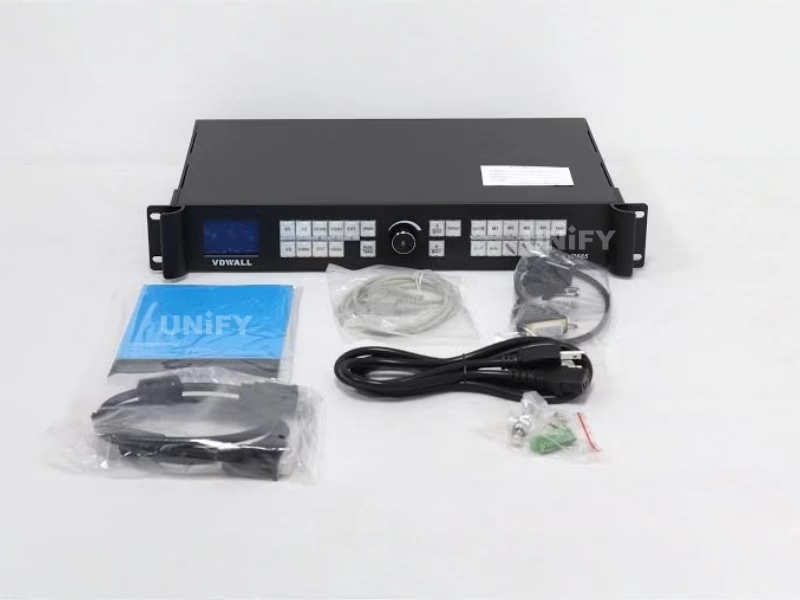
The three-line LCD tells the truth: what the source is actually sending, whatever the driver claims.
Fix 2 — No Signal on the Wall: Checking the Sending-Card Chain
Symptom: the wall stays black while the processor’s LCD shows a valid input. Cause: almost always downstream — the chain runs DVI OUT → sending card (internal, optional) → RJ45 → first receiving card, and any dead hop blanks the wall. Fix, in order: confirm the sending card is seated with its +5 V lead connected (the manual’s own step); confirm the DVI cable lands on the card, not the loop port; confirm the test pattern reaches the wall — every model generates 36 internal patterns, and a pattern that displays proves the whole chain while a pattern that doesn’t isolates the fault to cards or receivers. If the wall is second-hand and the receiver family is unknown, jump to Fix 8 before buying anything. The pairing logic lives in our sending card configuration guide, and the redundancy wiring in our backup and cascade walkthrough.
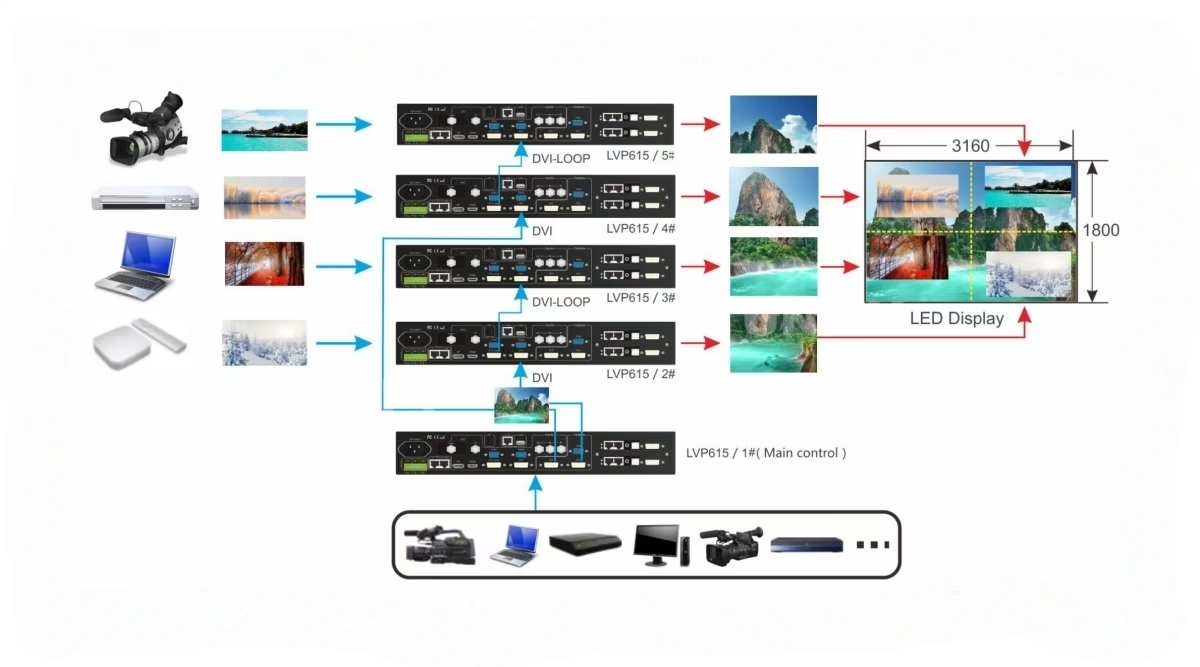
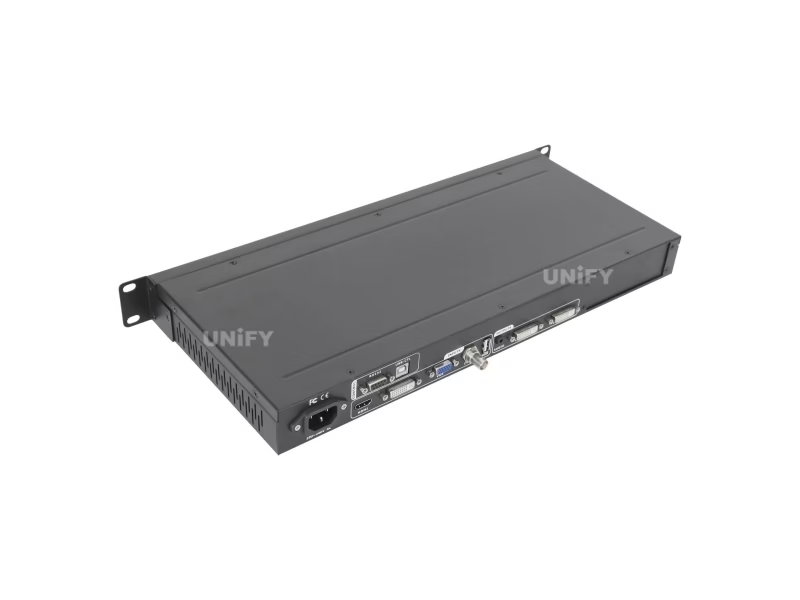
Walk the rear panel left to right: inputs, the two DVI outputs, and the slots that feed the wall.
Fix 3 — Black Flashes When Switching: DVI, HDMI, YPbPr and Group Rules
Symptom: the picture blinks when cutting between certain sources, and only certain ones. Cause: documented switching geometry, and it differs by model. On every model, YPbPr sits outside the seamless engine entirely — switching to it always flashes black. On the LVP100, the manual states seamless switching applies among inputs except between DVI and HDMI. On the LVP615S, seamless cuts work between the four input groups — A (V1/V2), B (VGA1/VGA2), C (DVI/HDMI/DP), D (EXT/SDI) — and never within one group. Fix: plan the source list around the rule set. Put sources that must cross-fade cleanly into different groups (PC in C, camera in D, backup laptop in B), leave YPbPr for material that tolerates the blink, and on the LVP100 accept the DVI↔HDMI blink or re-patch one of the two onto another input. This is re-plugging at load-in, not a repair.
Fix 4 — The WiFi App Cannot Find the Processor
Symptom: the LVP615S’s phone app reports no connection; the hotspot never appears or will not accept the app. Cause: nearly always one of four: the antenna is not installed (the manual’s own notice), the operator is looking for the wrong network, the module has wedged, or STA-mode DHCP has drifted the address. Fix, in order: confirm the WiFi antenna is screwed on; look for the processor’s own hotspot, SSID LVP615S, default password 88888888, gateway 192.168.7.1 — and connect the app to that first; if the module misbehaves, run menu 8.7 Wi-Fi Reset and reboot the unit; for installed venues on router mode (STA), configure credentials with the Wi-Fi Config Tool and set a manual IP so the address never drifts between services. Both defaults — the hotspot password and the module’s admin login — should be changed on install day anyway; the config tool exists for exactly that. Full control-path context is in the LVP615S review.
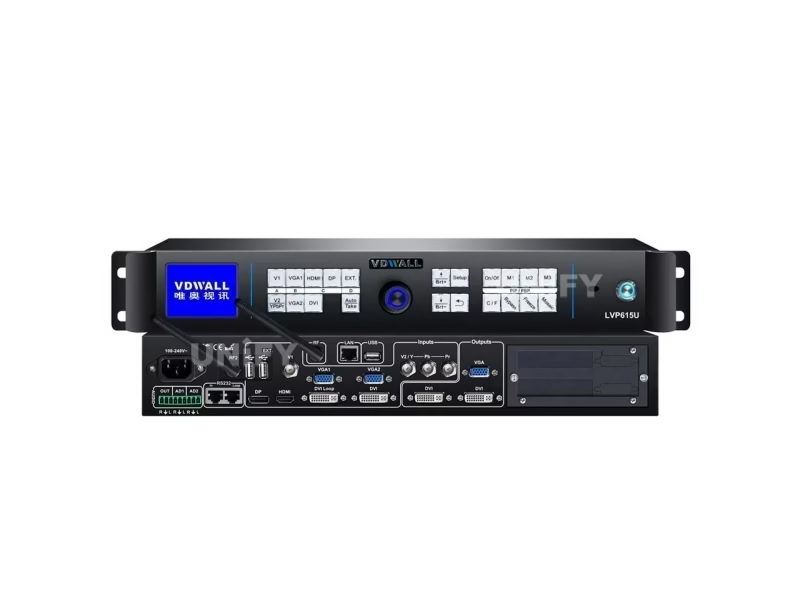
The 615S is the family’s app seat — and the only model whose faults include a WiFi module reset.
Fix 5 — Mosaic Tiles That Don’t Match: Brightness Scales and Level Settings
Symptom: in a multi-unit or multi-port build, one tile or wall section shines brighter than its neighbors although every number reads the same. Cause: scale mismatch, in two flavors. Within one model, the Bright Level setting (0–64 or 0–100) is stored per unit and survives a device reset — the LVP615S’s menu 8.5 and the LVP605’s equivalent hold this. Across models, the scales themselves differ: the LVP909 and LVP100 run 32-step quick keys while the 605 and 615S expose the 0–64/0–100 system, so identical numbers mean different output. Fix: set Bright Level, saturation, sharpness and bias identically on every unit through the menus, then output the same test pattern to the whole canvas and match by eye at the seams — the number-matching habit is exactly what the manuals warn against for mixed racks. The mosaic parameter discipline (Sync mode, per-unit tile positions, the even-value rule) is walked through in our LVP605 mosaic walkthrough and the LVP909’s auto-splice menus.
Fix 6 — A Panel That Stopped Responding: Lock States and Mode Traps
Symptom: the front panel ignores every press mid-show, or a screen that used to show preview has gone dark. Cause: two documented states, not two faults. The LVP909’s Lock key freezes the entire panel — and any command arriving from the remote surfaces (WiFi, LAN, RS232, USB) re-engages the lock automatically, so a software seat can look exactly like a dead panel. Separately, Out4’s job follows the application mode: it monitors in AppM1–M3 and the multi-window modes, but becomes a splice member in four-port mosaic, where menu 7.3’s independent Out4 resolution is intentionally locked out. Fix: press the Lock key three times without stopping to release the panel; if a preview screen is dark, check which application mode the unit is in (menu 1.2) before suspecting hardware. Mode changes restart the unit and reset unsaved data — set the mode at load-in, not mid-show.
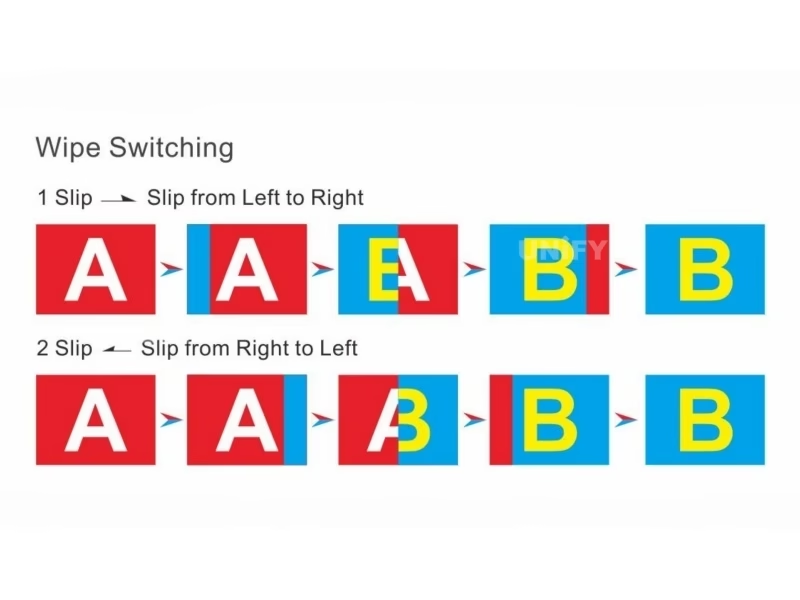
Three presses of the Lock key end most “dead panel” emergencies — the LVP909 locks itself by design.
Fix 7 — Picture Faults: Washed-Out Video, PIP Jitter and Color Cast
Symptom cluster one — composite footage looks washed out or heavy. On the LVP100/100U, toggle menu 13 NTSC Image Mode between Soft and Standard; VDWALL added it precisely because some CVBS sources render too bright or too dark in one mode. Symptom two — interlaced material jitters inside a PIP window. Switch on De-Interlace (menu 8.4 on the 615S, item 20 behind the LVP100’s hidden factory menu) — the manuals note it costs a little image quality to kill the tremble. Symptom three — analog sources drift off-color after a venue change. Run ADC Calibration against the live input: item 16 on the LVP100 (enter Device ID, press CVBS five times), menu 7.1 on the LVP909, and the equivalent routine on the 615S. Work the three in that order; each addresses a different layer of the same complaint.
The LVP100’s hidden factory menu (Device ID, then CVBS ×5) holds NTSC mode, DVI hotplug, Bias and De-Interlace.
Fix 8 — Beyond the Manual: Second-Hand Walls and Unknown Receivers
Symptom: a used wall arrived with a VDWALL processor inside, rebranded software nobody recognizes, and no documentation; the owner wants to add a sending card, split the wall, or swap the processor. Cause: the processor was never the locked part — the receiving cards and their configuration files are. The recurring r/VIDEOENGINEERING threads on rebranded Microh-class walls follow this exact shape. Fix: open a cabinet and read the receiving card’s silkscreen before buying anything; the sending side must speak the receiver’s protocol, and once the family is known, the processor choice opens up — any box that drives the same card family fits, which is why VDWALL’s DVI-out architecture survives these migrations so often. The ladder behind those choices is mapped in our family comparison and priced in the price guide. Our sending card detection guide walks the identification steps, and the flickering guide picks up the faults that turn out to be refresh-rate or cabling rather than the processor at all.
FAQ: VDWALL LED Video Processor Troubleshooting Questions
Why won’t my PC’s resolution change on the VDWALL processor’s DVI input?
The graphics card is overriding you: it reads the input’s EDID and auto-outputs its “best” mode — typically 2048×1152. Set the driver’s scaling to custom or preserve-aspect-ratio so it transmits the resolution you choose; VDWALL’s FAQ documents the fix, and the custom DVI EDID menu adds a processor-side lever on the 615S and 100.
The LED wall shows no signal but the processor LCD shows an input — where is the fault?
Downstream of the processor in nine of ten cases: sending card seating and its +5 V lead, the DVI hop from output to card, and the RJ45 to the wall’s first receiver — the chain our sending card guide diagrams. Output a test pattern — if it displays, the chain works and the fault is at the source side instead.
Why does the picture blink when I switch between DVI and HDMI?
On the LVP100 this is documented behavior: seamless switching applies among the inputs except the DVI↔HDMI pair. Across the line, YPbPr never joins the seamless engine and same-group sources blink on the 615S. Re-plan which sources need clean cuts rather than chasing a repair.
What is the LVP615S WiFi password, and why won’t the app connect?
The hotspot broadcasts as “LVP615S” with default password 88888888. If the app finds nothing: confirm the antenna, connect to the hotspot first, run menu 8.7 Wi-Fi Reset, reboot, and on router mode set a manual IP in the Wi-Fi Config Tool.
One section of my mosaic wall is brighter — which setting fixes it?
Brightness level: the 0–64/0–100 scales are stored per unit and survive resets, and mixed-model racks add a second wrinkle (the 909 and 100 run 32-step quick keys). Set Bright Level, color, sharpness and bias identically everywhere, then match by eye against one test pattern across the whole canvas.
The LVP909 front panel ignores everything — is it broken?
Usually locked, not broken: any command from the remote surfaces re-engages the panel lock by design. Press Lock three times without stopping to release. And if a preview screen went dark, check the application mode — Out4 belongs to the mosaic in four-port mode.
How do I fix a washed-out composite camera?
Toggle NTSC Image Mode between Soft and Standard (LVP100U menu 13), then run ADC calibration against the live input if the color still drifts. Both exist for exactly this complaint; saturation trims come last.
1080i footage jitters inside the PIP window — what setting helps?
De-Interlace. It is menu 8.4 on the LVP615S and item 20 behind the LVP100’s hidden factory menu (Device ID, then CVBS five times). The manuals note it trades a little sharpness for stability — intended exactly for interlaced PIP material.
Video playback on an extended desktop breaks when the processor is connected — why?
The processor’s DVI hot-plug signal can upset a few PC setups running video on extended desktops. The manuals document the cure in the hidden menu: turn DVI Hotplug off (item 17 on the LVP100, menu 2-range territory on the 615S), and the player behaves again.
How do I factory reset a VDWALL processor?
Model by model: Device Init on the LVP100 (hidden menu item 21), Device Reset on the 615S (8.8) and 909 (7.2), Device init on the LVP605’s factory menu. Note what survives: the Bright Level choice persists by design on the 615S and 100 — reset does not fix a scale mismatch.
My second-hand wall has rebranded software and no manual — where do I start?
Open a cabinet and read the receiving card’s silkscreen: the receiver family decides everything downstream, from sending-card purchases to which processor can drive the wall. VDWALL’s card-agnostic DVI outputs are why its boxes keep working in these racks; the detection steps are in our sending card guide.
When should I stop troubleshooting and escalate?
After the eight fixes: a processor that fails its own test patterns with a known-good chain, loses settings across power cycles, or shows panel hardware damage is a warranty case — the reviews on this site list what each model ships with, and units sourced from a LED screen manufacturer carry one support contact for the whole chain.
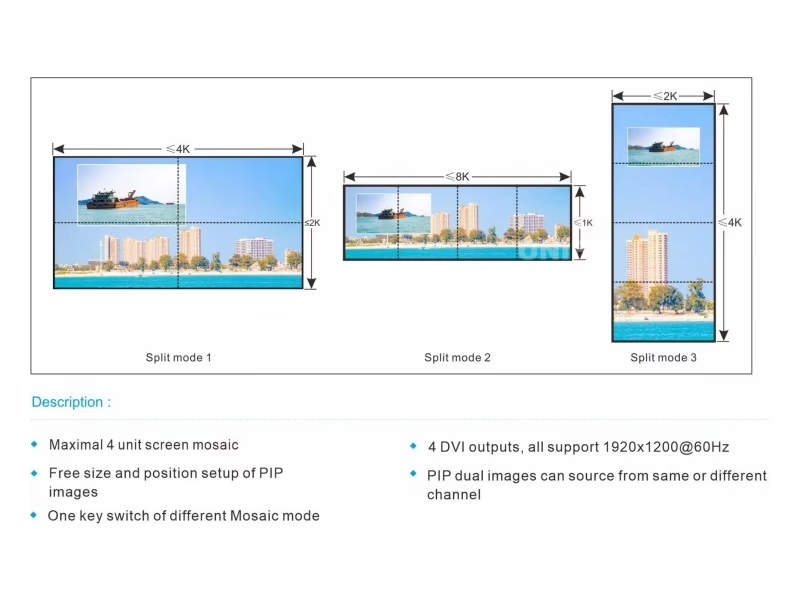
When the eight fixes point at the chain rather than the box: walk the workflow, then escalate with the test-pattern result in hand.
References & When to Escalate: Warranty and Support
- VDWALL official documentation: LVP605 FAQ on DVI scaling (en.vdwall.cn, 2015); LVP100 User Manual V1.0 (NTSC Image Mode, hidden factory menu, DVI hotplug); LVP615S User Manual V1.2 (Wi-Fi reset, Pre.+Take groups, De-Interlace); LVP909 User Manual (Lock behavior, application modes, Out4 rules).
- Owner reports: r/VIDEOENGINEERING threads on rebranded second-hand walls and sending-card identification; church-media group discussions on processor switching behavior.
- Escalation: after the eight fixes, faults that survive a known-good chain and a test pattern are warranty territory — every model review on this site lists the package contents, and factory-sourced units carry pre-shipment testing with a single support contact.
Related VDWALL guides:
VDWALL LED video processor hub · Church Setup Guide · 2026 Price Guide · LVP909 review