
NovaLCT Cannot Detect Sending Card: Complete Troubleshooting Guide
Published: 2026-08 | Reading time: 7 min | UnifyLED Engineering Team
You launch NovaLCT, ready to configure an LED display — and nothing appears. No sending card detected. The software sits empty while the controller hardware is powered on, cables connected, and everything looks physically correct. This scenario repeats daily in control rooms, rental staging setups, and fixed installation sites worldwide. When NovaLCT cannot detect sending card hardware, the root cause is almost never “the card is dead.” It is one of six predictable failure points: a missing USB driver, a faulty cable, an IP subnet mismatch, antivirus interference, corrupted firmware, or a cascade configuration error. As a LED screen manufacturer with thousands of NovaStar-based deployments, we train every installation team on this exact diagnostic workflow.

1. How Does NovaLCT Detect a Sending Card? USB vs Ethernet Explained
Before diagnosing a detection failure, understand the two communication paths NovaStar’s software uses to discover hardware. A USB connection is the default for initial setup: a USB-B cable links the sending card — an MCTRL series, NovaPro, VX series, or H-series controller — directly to the configuration PC. The PC enumerates the controller as a USB device, and NovaLCT communicates over a virtual COM port established by NovaStar’s proprietary driver. An Ethernet (LAN) connection uses TCP/IP: the sending card and PC connect to the same network switch, and NovaLCT discovers the card by its IP address. This is the standard configuration for fixed installations where the control rack sits in an equipment room separate from the operator workstation.
The critical diagnostic insight: if NovaLCT cannot detect sending card hardware over USB but the same card responds via Ethernet (or vice versa), the fault is isolated to that specific communication path. If both paths fail simultaneously, the problem is likely power, firmware, or hardware-level.
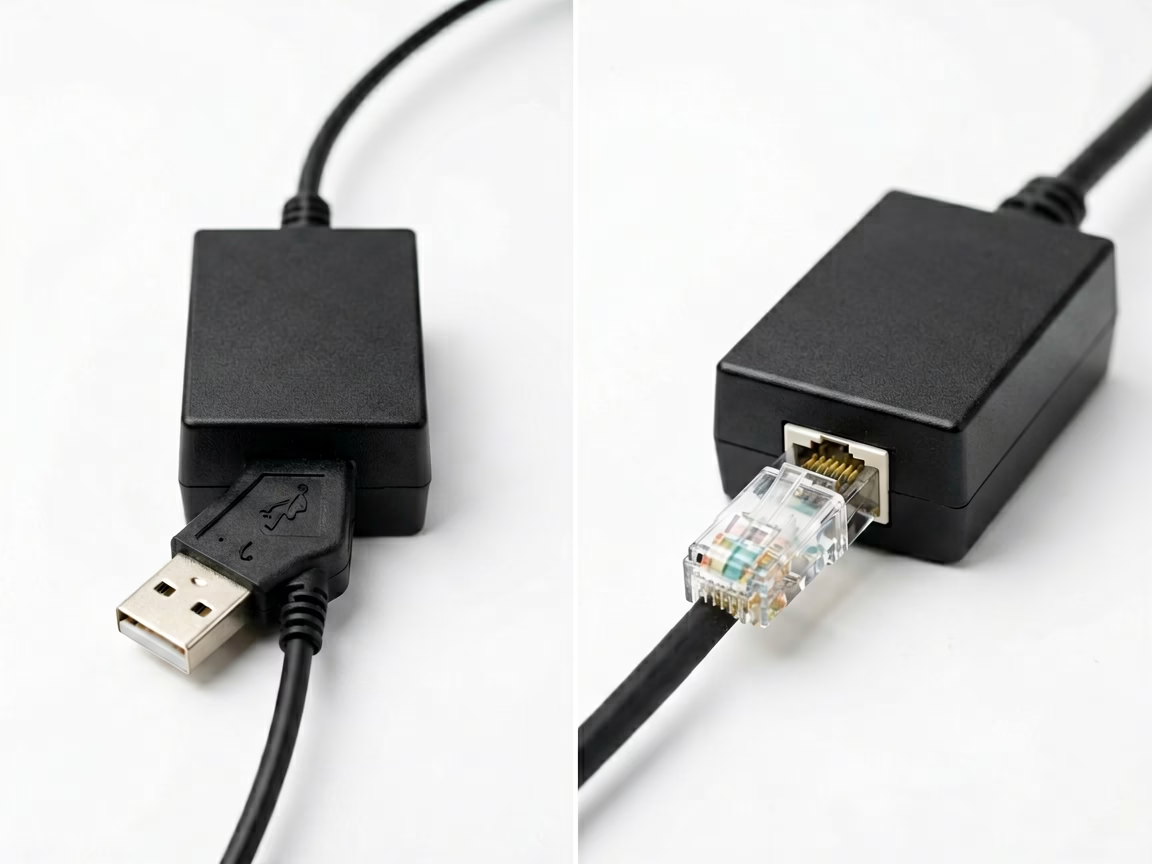
2. Why Does NovaLCT Cannot Detect Sending Card Over USB? Fixes
USB detection failures account for approximately 70% of “sending card not found” cases in the field. Each cause is diagnosable with the right sequence of checks.
2.1 Driver Issues — The Most Common Cause
NovaStar controllers require a proprietary USB driver installed as part of the NovaLCT setup package. If the installer’s “Install additional drivers” checkbox was skipped, Windows has no mechanism to recognize the controller. The controller powers on normally — green LED lit — but Device Manager shows nothing. Fix: download the latest NovaLCT from NovaStar’s official website, run the installer, and ensure every driver component is selected. Reconnect the USB cable after installation. Within seconds, Windows should detect the device. If Device Manager still shows nothing under “Ports (COM & LPT),” the driver did not install correctly.
2.2 Cable Quality and Length Limits
The USB 2.0 specification limits passive cable length to 5 meters. Beyond that distance, signal attenuation causes unreliable device enumeration. A controller may appear intermittently or not at all. In practice, use a USB cable no longer than 3 meters for reliable field operation. More importantly, use a data-capable USB cable — not a charge-only cable. Charge-only cables lack the D+ and D- data lines. They look identical to data cables but will never establish communication with a sending card.
2.3 Port and Hardware Conflicts
USB 3.0 ports (blue) occasionally exhibit compatibility issues with USB 2.0 controller hardware. Try a different USB port — preferably a USB 2.0 port directly on the motherboard (rear ports on a desktop), not a front-panel connector or an unpowered USB hub. If using a laptop, avoid USB ports on a docking station during initial diagnosis; connect directly to a built-in port.
2.4 Antivirus and Firewall Blocking
Security software with “USB device control” or “device guard” features — common in corporate IT environments — can block the low-level driver communication NovaLCT requires. Temporarily disable real-time antivirus protection and test detection. If the card is discovered immediately, add NovaLCT.exe to the antivirus exclusion list. On managed corporate laptops where security policy prevents temporary disabling, request an application whitelist exception from the IT department before deployment.
3. What to Do When NovaLCT Cannot Detect Sending Card via Ethernet?
Ethernet detection is the preferred method for fixed installations where the control PC and controller are separated by distance. When NovaLCT cannot detect sending card hardware over the network, the fault sits at one of three layers: physical connection, IP configuration, or software firewall.
3.1 Physical Layer: Cable, Port, and Link LED
Both the PC’s network port and the controller’s Ethernet port have link indicator LEDs. No link light means no physical connection — the cable is faulty, disconnected, or connected to a dead switch port. Test with a known-good Ethernet cable connected directly between the PC and the controller (bypassing the switch) to isolate the issue. For background on cable diagnostics, see our LED display signal cable troubleshooting guide.
3.2 IP Address and Subnet Configuration
The PC and the sending card must reside on the same IP subnet for NovaLCT discovery to function. NovaStar controllers ship with a default IP — typically 192.168.0.100 or 192.168.1.100 depending on the model. If the PC is configured for DHCP on a corporate network using a 10.x.x.x addressing scheme, it will never discover a controller on a 192.168.x.x address. Configure the PC’s Ethernet adapter with a static IP on the same subnet as the controller — for example, 192.168.0.200 paired with a controller at 192.168.0.100. Open Command Prompt and run ping 192.168.0.100. If the controller responds, the IP layer is healthy and the problem is in NovaLCT’s discovery mechanism. If no ping response: verify the controller’s IP via its front-panel display, confirm the subnet mask matches on both devices, and check that no other device on the network has the same IP.
3.3 Windows Firewall and Network Profile
Windows Firewall blocks NovaLCT’s UDP broadcast packets used for device discovery when the network is classified as “Public.” Open Windows Defender Firewall → “Allow an app or feature through Windows Defender Firewall” → ensure NovaLCT is listed and permitted on both Private and Public network profiles. If your PC’s Ethernet is assigned to a “Domain” network profile by group policy, NovaLCT must be allowed on that profile as well. After changing firewall settings, restart NovaLCT — not just close and reopen — to force a fresh discovery broadcast.
4. How to Diagnose Complex Sending Card Detection Failures in NovaLCT
4.1 Firmware Corruption and Boot-Loader Mode
A failed firmware update — interrupted power, incorrect firmware file, or USB disconnection mid-write — leaves the sending card in a boot-loader state. The green status LED flashes rapidly (approximately 7 times per second) instead of remaining steady. In this mode, the card does not respond to normal discovery requests. Download the latest firmware package from NovaStar’s website. In NovaLCT, navigate to “Tools → Program Update,” select the sending card model, and initiate a forced firmware recovery via USB. The process takes approximately 3–5 minutes and must not be interrupted.
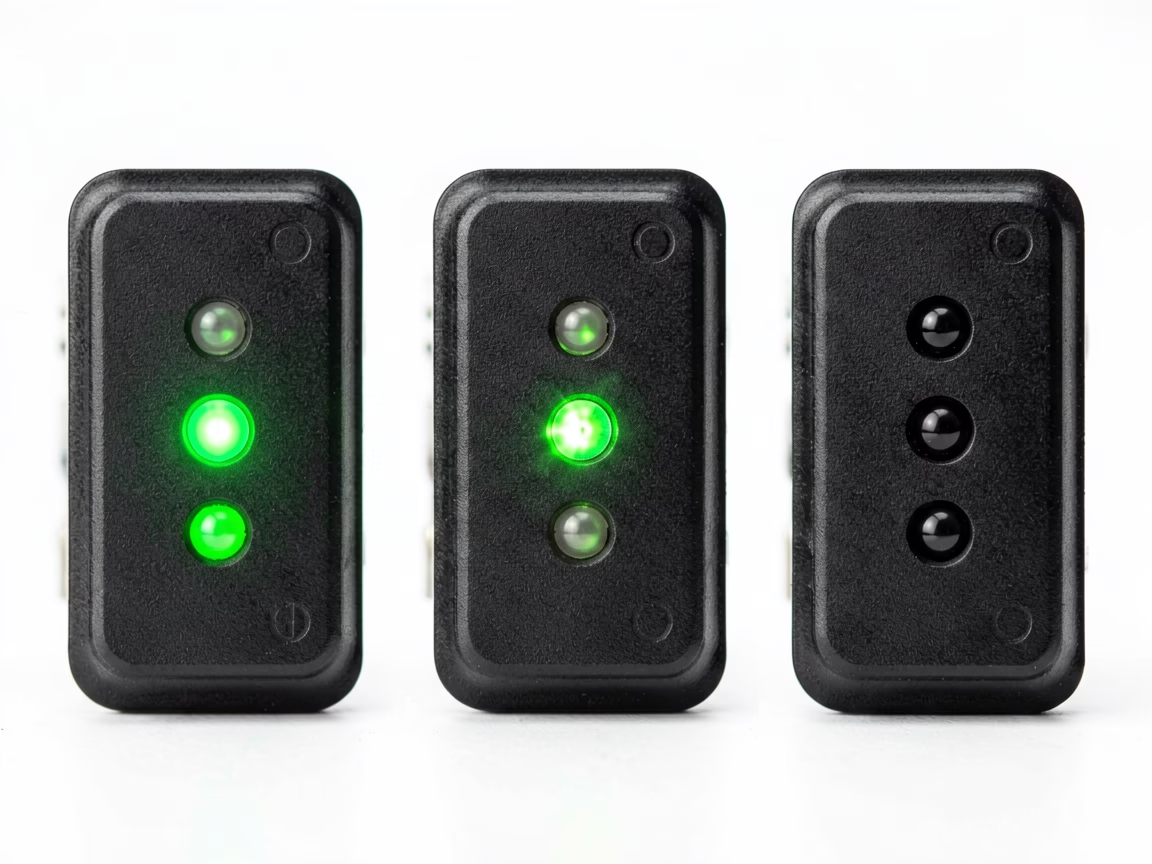
4.2 Multiple Sending Cards and Cascade Issues
In configurations using UART cascade to link multiple sending cards, NovaLCT must discover the primary card before secondary cards become accessible. If the primary card is not detected, none of the cascaded cards will appear — creating the appearance of a full-system failure when only one card has a problem. Disconnect all UART cascade cables and test each card individually via USB. This confirms whether each unit is independently functional. Reconnect the cascade one card at a time, testing detection after each addition to identify which card or cable in the chain is responsible. For multi-card environments, review our multi-sending card backup and cascade guide.
4.3 Hardware Failure Indicators
When software, driver, cable, and network troubleshooting all fail, the sending card itself may be defective. Definitive hardware failure symptoms: the power LED never illuminates despite verified DC input voltage at the power connector; the card’s Ethernet port shows no link LED activity on any known-good cable and switch port; the card emits a burnt odor or shows visible scorching near the power input section. A card with no LED activity at all — with confirmed power at the input terminals — has suffered an internal power supply failure and requires replacement.
5. When NovaLCT Cannot Detect Sending Card: A 7-Step Checklist
Follow this sequence in order. Each step eliminates one failure category before moving to the next. The most common diagnostic mistake is jumping to Step 7 (hardware failure) before completing Steps 1 through 6.
Step 1 — Power Verification: Confirm the sending card’s power LED illuminates. Measure DC input voltage at the card’s power connector with a multimeter — typically 5V or 12V DC depending on the model. No power LED = no detection possible.
Step 2 — USB Driver Check: Open Windows Device Manager. Under “Ports (COM & LPT),” look for a NovaStar device entry. If absent or marked with a yellow warning triangle, reinstall NovaLCT with all driver components selected.
Step 3 — Cable Substitution: Replace both the USB cable and Ethernet cable with known-good cables under 3 meters. This single step resolves approximately 40% of all detection failures.
Step 4 — Port Swap: Try a different USB port on the PC (preferably USB 2.0 on the motherboard rear panel) and a different Ethernet switch port. This identifies faulty PC ports or switch ports.
Step 5 — Antivirus Test: Temporarily disable all antivirus and firewall software. If the card is detected immediately, whitelist NovaLCT.exe. This resolves approximately 15% of cases, particularly in corporate IT environments.
Step 6 — IP Configuration (Ethernet Only): Verify the PC and controller share the same IP subnet. Ping the controller’s IP address. If USB detection works but Ethernet does not, the controller’s Ethernet port or IP configuration is the fault.
Step 7 — Firmware Recovery: If the green LED flashes rapidly (boot-loader mode), perform a forced firmware update via USB following NovaStar’s recovery procedure. If the card shows zero LED activity despite verified power input, hardware replacement is indicated.
6. How to Prevent NovaLCT Sending Card Detection Problems
Install the full NovaLCT driver package — never uncheck driver installation during setup. A single missed checkbox is the root cause of the majority of repeat service calls. Maintain a dedicated configuration laptop with NovaLCT pre-installed and verified against a known-good controller. This laptop should never receive automatic Windows driver updates without testing first. Label every USB cable used for controller communication and store them separately from charging cables — a charge-only cable wastes diagnostic time and looks identical to a data cable. Document the IP address of every controller in the installation: affix a label to the controller chassis and record it in the system documentation. Store a backup of every controller’s firmware and configuration file on the configuration laptop and in cloud storage. For professional support from a qualified LED screen manufacturer, contact UnifyLED’s engineering team for controller configuration assistance and LED display system debugging support.
7. What to Do When NovaLCT Cannot Detect Sending Card: Final Verdict
When NovaLCT cannot detect sending card hardware, the solution is almost never “replace the card.” It is a driver that was not installed. A cable that appears functional but is charge-only or exceeds the length limit. A firewall silently blocking UDP discovery packets. An IP address on the wrong subnet. Firmware stuck in boot-loader mode after an interrupted update. Following the 7-step checklist in sequence — starting with power verification and ending with firmware recovery — resolves over 95% of detection failures without requiring hardware replacement. Our basic LED display debugging guide and control system operations resources are available in UnifyLED’s technical documentation library.
Need NovaStar Controller Technical Support?
Factory-direct LED displays with pre-configured NovaStar control systems. Free technical consultation for setup, configuration, and troubleshooting.
unifyledscreen@gmail.com | +86-191-18802497