
Huidu HDPlayer Software Guide: Install, Configure and Manage Your LED Control System
UnifyLED · LED Control System Guide · Updated August 2026
The Huidu HDPlayer software guide is the one reference every integrator needs after the hardware arrives — because the HD-A3, HD-A5, HD-A6L, C16C and C36C all run on the same free software, and a screen that will not show content is almost always a configuration issue in HDPlayer, not a hardware fault. This guide walks the full workflow: download, install, connect, configure, edit, send, manage a fleet, upgrade firmware and troubleshoot — with the official Huidu tutorials embedded at the step where each one answers the question.
Short answer: HDPlayer is Huidu’s free Windows software for all its async and dual-mode products — the HD-A3, HD-A5, HD-A6L, C16C and C36C. The workflow is five steps: install and restart, connect and auto-identify (no IP configuration), edit programs, send them by cable, Wi-Fi, U-disk or the cloud, and manage the fleet from one seat. The mobile side runs on the PingZhangKong app, and the cloud side on Huidu’s platform.
What Is Huidu HDPlayer and Why Do You Need It for Your LED Control System?
HDPlayer is the configuration surface for every Huidu async product: it sets the screen parameters, edits programs and sends them. Without it, a control card is just a board — with it, the whole workflow of the Huidu control system becomes a five-step routine. The software is free and Windows-based (7–11), and it is the same tool across the A-series boxes and the C-series cards, which is one of the practical advantages of staying inside one ecosystem: one software package runs the whole fleet.
How Do You Download and Install the Huidu HDPlayer Software?
Download HDPlayer from the official Huidu site or from our Huidu system software downloads page, which mirrors the current version. The installation routine has three habits worth keeping: unzip to a fixed directory (a path like C:\Huidu\HDPlayer survives re-installs better than a Downloads folder), run the installer as administrator so the USB and network drivers register, and restart the computer after install — skipping the restart is the most common cause of “HDPlayer cannot find the card” on a fresh machine.
Version hygiene matters on a fleet. HDPlayer updates ship regularly — the 2026 line adds the third-party APK install covered later in this guide — and the update cadence is not uniform across the product line: the same software version drives the A3 and the C16C, but a firmware update on one model does not change the other’s behavior. The habit we recommend: keep one release version per fleet, note it in the installation log, and only upgrade when a feature or a fix in the release notes actually applies to the installed models. A fleet that drifts across versions is a fleet whose screens behave differently for no documented reason.
How Do You Connect and Identify a Huidu Control Card in HDPlayer?
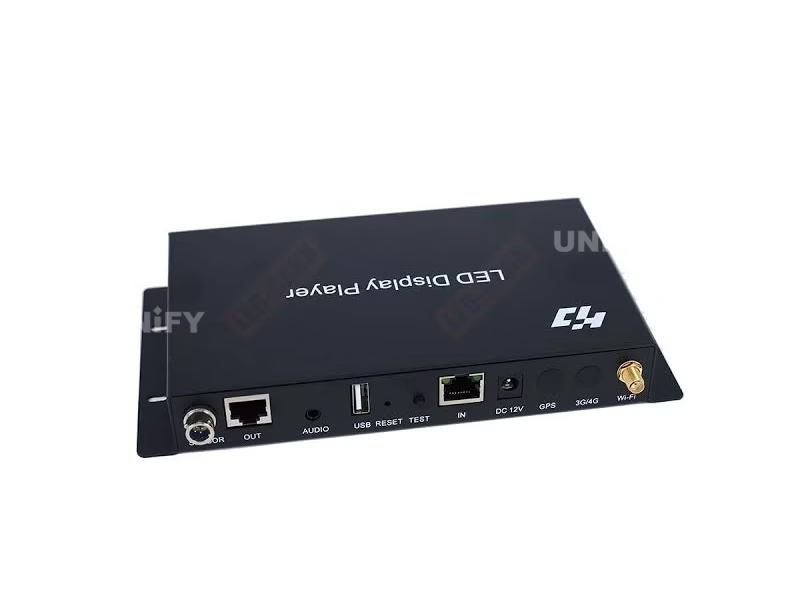
Connect the control card to the computer by Ethernet (long-distance, stable) or USB (short-range commissioning); Wi-Fi pairing is available on the cards that carry it, with the factory hotspot password documented on the product page. Then the key step: HDPlayer auto-identifies the card by controller ID — no IP configuration needed. Run the search, confirm the card appears, and the smart-setting wizard reads the screen parameters; the official HD-A3 configuration tutorial below (73,000+ views) shows the whole identification flow, and the smart-setting video covers the null-point and screen-parameter side.
Huidu Official — configuration tutorial of HD-A3 and receiving card in HDPlayer
How Do You Edit and Send Programs with HDPlayer?
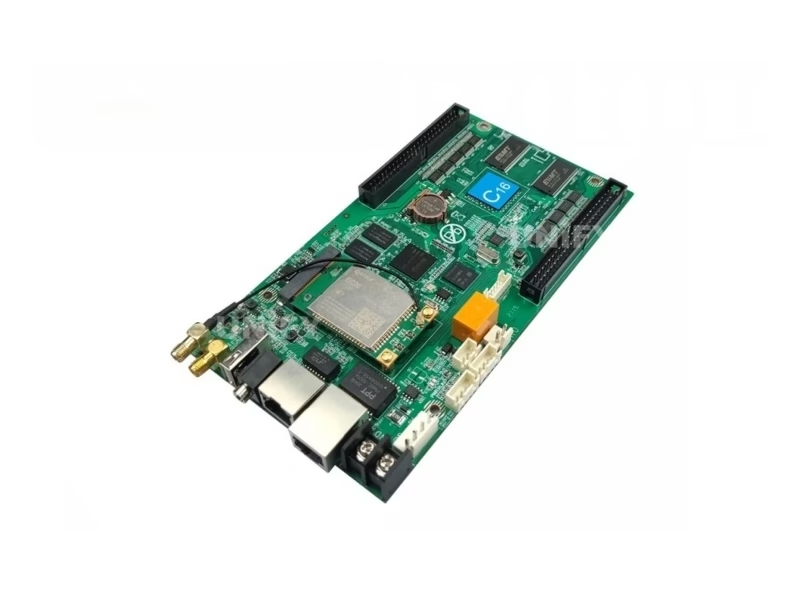
The editor builds programs from text, 3D text, images, video, clocks, countdowns, weather and Office documents, arranged into regions across the canvas. The format coverage is broad — 17 video formats hardware-decoded at 60 Hz on the A3, ten image formats and Office 2007 documents across the line — so content rarely needs re-encoding. Sending runs four ways: network cable, LAN cluster (multi-screen batch), Wi-Fi with the PingZhangKong app, and U-disk for offline sites. The official C16C tutorial below (29,820 views) walks the full edit-and-send loop, and the program-sending video covers the transmit step in isolation.
Two field habits make the edit-and-send stage predictable. First, design content against the real pixel budget: a 1024×512 screen on the C36C is a different canvas from a 1280×512 screen on the A3, and HDPlayer renders regions at the configured resolution — build the layout at the screen’s native pixels and it lands pixel-perfect, scale it in the editor and it will look different on the wall. Second, use the U-disk path as the fallback standard: export a program batch to a FAT32 drive for every site, even the networked ones, because the same drive that updates a screen today is the emergency recovery path when the network is down tomorrow. The official C36C and A3 pages on this site document the exact loading budgets per model.
Huidu Official — C16C video tutorial HDPlayer software
Huidu Official — how to send program with HDPlayer
How Do You Manage Multiple Screens with HDPlayer Cluster and Cloud?
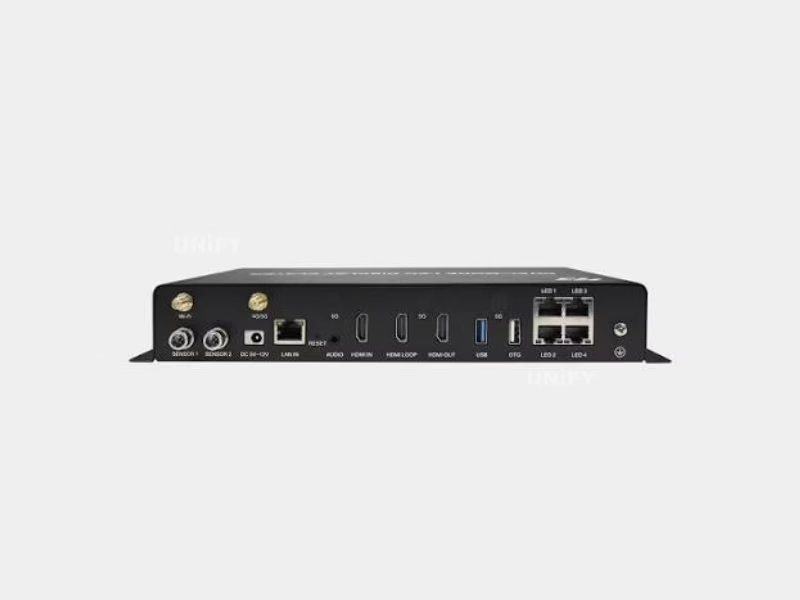
A fleet of screens is where HDPlayer becomes a management tool instead of a configurator. The cluster-sending function pushes a program to every card on the LAN in one pass — the standard workflow for a retail network. Above the LAN sits the cloud layer: the PingZhangKong mobile app pairs with the card’s Wi-Fi for floor-level changes, and Huidu’s cloud platform manages screens over the internet, with 4G/5G optional on the A6L. The official 9-minute HDPlayer operation video below shows the full management workflow, and the HD-A6L product page documents the 4G/5G and cloud side in detail.
The cluster workflow rewards a small discipline: name the screens before the first batch send. HDPlayer identifies devices by controller ID, and a fleet of unnamed cards is a fleet of identical IDs on a network — label each card in the device list at commissioning (store 03, lobby north, entrance west), and the cluster-send target list reads like a floor plan instead of a serial-number puzzle. The same naming lives in the cloud platform, so the dashboard matches the field labels. Operators who skip the naming step spend the first week of every campaign guessing which card is which.
Huidu Official — HD-A3 controller software HDPlayer operation
How Do You Upgrade HDPlayer Firmware and Use New Features in 2026?
Firmware upgrades run inside HDPlayer and matter more on Huidu cards than on most — the C16C’s loading figure, for example, grew from 120,000 to 204,800 pixels through a firmware revision, which the C16C page documents in detail. The 2026 HDPlayer line adds third-party APK installation for the Android-based boxes, opening the platform beyond Huidu’s own app suite — the official new-feature video below covers the install path.
Huidu Official — HDPlayer new function to install third-party APK without SDK
How Does HDPlayer Compare with LEDVision and NovaLCT?
Each of the three control brands ships its own software, and the personalities match the hardware positions from the three-brand comparison. HDPlayer is free, simple and async-first — the interface an advertising-network operator lives in, with the cloud layer on top. LEDVision is Colorlight’s rental-oriented tool, documented in the LEDVision setup guide on this site. NovaLCT is Novastar’s feature-complete configuration suite — the most powerful of the three and the heaviest to learn, with the NovaLCT detection troubleshooting guide on this site covering its most common failure. The general software-and-hardware workflow is covered in the control system software and hardware knowledge page.
The practical rule for an integrator who runs more than one brand: keep the software separation clean. HDPlayer, LEDVision and NovaLCT can coexist on one PC — they are independent installers — but the confusion risk is real, because each brand’s software only talks to its own hardware and the UIs share vocabulary. Install each to its own directory, tag the desktop shortcuts with the brand, and never open two at once during commissioning; a program edited in LEDVision will not send through HDPlayer, and the error message that results has sent more than one installer back to the manual. One brand, one tool, one workflow — the discipline that the three-brand guide on this site recommends carries into the software seat as well. When a project genuinely spans brands, keep a per-brand commissioning checklist on the bench, because the screen-parameter fields look alike but behave differently, and the “it worked in the other software” assumption is the most expensive one in the booth.
How Do You Troubleshoot Common Huidu HDPlayer Problems?
Most field faults are software-side, and the diagnosis order is short. Card not found: check the cable, restart after install, and confirm the firewall is not blocking the search. Screen garbled or wrong colors: the screen parameters are wrong — verify the module type, scan mode and polarity against the supplier’s sheet, and use the test button to isolate a cabling fault from a parameter fault. Program sent but screen blank: check the source and the receive-card chain. The official A4/A5/A6 problem-solving video below covers the software-side check list, and the async playback troubleshooting guide and the maintenance guide on this site go deeper.
Three of the most-reported HDPlayer issues have one-line fixes worth memorizing. “Card not detected” on a machine that worked yesterday: check Windows firewall rules — the install adds a network exception, and a Windows update can silently drop it. “Program sends but the screen keeps the old content”: the card is probably in a different program region than the one you edited — switch the active region in the editor, not the card. “Video plays with no audio”: confirm the audio output assignment in the card settings, because the stereo output is a separate path from the video pipeline. The official troubleshooting video below walks the wider list, and the firmware note from the C16C page applies here too — some “faults” are old firmware behaving differently from the current release.
Huidu Official — how to solve common problems of HDPlayer software controller
How to Use This Huidu HDPlayer Software Guide for Your LED Wall: Final Thoughts
This Huidu HDPlayer software guide covers the five steps that turn a control card into a running screen: install and restart, connect and auto-identify, edit, send by cable or U-disk or cloud, and manage the fleet. The same workflow runs the HD-A3, HD-A5, HD-A6L, C16C and C36C — and when a screen misbehaves, the software side is the first place to look, because it is the cheapest fix in the chain. Unify LED is an LED screen manufacturer in Changsha, China, supplying Huidu control systems at factory level with the HDPlayer download mirrored and 2-year warranty support — the next guide in this series covers the full Huidu price range, and the troubleshooting series continues from where this guide stops.
A closing checklist for the first commissioning hour: (1) install HDPlayer and restart, (2) connect the card and confirm auto-identification, (3) run the smart-setting wizard and verify the test pattern before loading content, (4) send one simple text program by cable, (5) then by U-disk, (6) then by Wi-Fi or the cloud if the site has them, and (7) label the card in the device list. Thirty minutes of discipline at the start saves the first service call — and it is exactly the workflow the official videos above demonstrate, step by step. Once the first screen runs, the same routine repeats for every additional screen in the fleet, and the naming discipline from the cluster section turns the second hundred screens into the same thirty minutes.
Related: browse the full Huidu LED controller catalog — 12 models across four product lines, free HDSet / HDPlayer / HD Show software, cloud remote control without a subscription, and factory-direct pricing.