
Troubleshooting Asynchronous LED Display Playback — Common Issues and Fixes
Troubleshooting asynchronous LED display playback comes down to checking four things, in this order: power, storage, file format, and schedule. Unlike synchronous systems where the problem is usually a loose HDMI cable, async issues tend to be software and configuration problems — the media player is powered on, the screen is lit, but the content is wrong, missing, or not playing when expected.
What Are the Most Common Symptoms When Troubleshooting Asynchronous LED Display Playback?
| Symptom | Most Likely Cause |
|---|---|
| Screen black, player powered on | Schedule set to blank this time slot, or Ethernet cable to cabinets loose |
| USB update not working | USB not formatted as FAT32, or solution exported incorrectly |
| Video plays on PC but not player | Codec incompatible — player requires H.264 MP4 |
| Wrong content playing at wrong time | Player clock is wrong, or schedule rules conflict |
| Content frozen / player unresponsive | Power-cycle the player. If persistent, firmware corruption. |
Why Does a USB Update Fail During Asynchronous LED Display Playback?
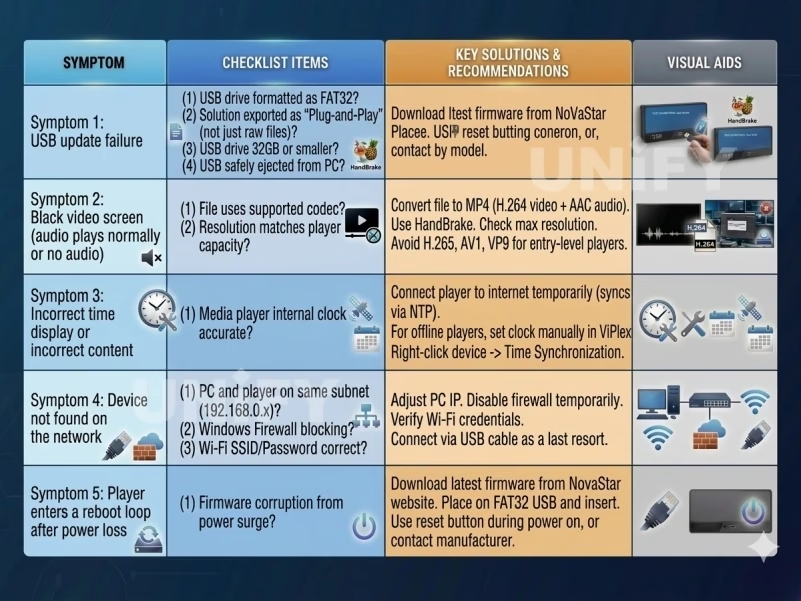
Checklist: (1) Is the USB drive formatted as FAT32? NTFS and exFAT are not supported by most media players. (2) Did you export the solution as “Plug and Play” or “Copy and Play” (not just copy the files)? The player needs the solution metadata, not just raw video files. (3) Is the USB drive 32GB or smaller? Some players cannot read larger drives. (4) Did you safely eject the USB from the PC before removing it? File corruption from unsafe removal is the #1 cause of USB playback failures.
How to Fix Video Black Screen in Asynchronous LED Display Playback?
The video file uses a codec the media player does not support. Fix: Convert to MP4 with H.264 video codec and AAC audio. Use HandBrake (free, cross-platform). Set resolution to match or be below the player’s max pixel capacity. Do not use H.265/HEVC, AV1, or VP9 — these codecs require hardware decoders not present in entry-level media players. The Taurus series supports H.265; TB40 and below do not. For a list of supported codecs by model, see our media players comparison guide.
Why Does Wrong Content Play at Wrong Time When Troubleshooting Asynchronous LED Display Playback?
The media player’s internal clock is incorrect. Without an internet connection, the clock drifts over time and does not correct for daylight saving. Fix: Connect the player to the internet temporarily — it syncs time via NTP automatically. For permanently offline players, manually set the clock in ViPlex Express: right-click the device → Time Sync. Check and correct the clock quarterly.
What to Do When the Device Is Not Found on Network — Asynchronous LED Display Playback Troubleshooting?
Fix: (1) Both PC and player must be on the same subnet. Default player IP is 192.168.0.10. Set your PC to 192.168.0.x. (2) Windows Firewall may block ViPlex Express discovery — temporarily disable and retry. (3) If using Wi-Fi, verify the player’s SSID and password are correct (configured in ViPlex Express). (4) As a last resort, connect via USB cable for direct device access.
How to Fix Player Boot Loops After Power Loss in Asynchronous LED Display Playback?
Firmware corruption from a power surge. Fix: Download the latest firmware from NovaStar’s website onto a FAT32 USB drive. Insert into the player. Hold the reset button (if available) while powering on. If the player does not have a reset button, contact your LED screen manufacturer for the recovery procedure specific to your model.
Where to Go Next After Troubleshooting Asynchronous LED Display Playback?
Troubleshooting asynchronous LED display playback follows a simple diagnostic order: check the schedule and clock first (software problem — most common), then check file formats (codec problem), then check physical connections (hardware problem — least common). The media player’s web dashboard or ViPlex Express device status page tells you more in 10 seconds than 30 minutes of guesswork on-site.