
Huidu LED Controller Troubleshooting: The Five-Step Diagnostic Guide
UnifyLED · LED Control System Guide · Updated August 2026
The Huidu LED controller troubleshooting story is mostly good news: most field faults are configuration and cabling, not hardware, and the diagnosis follows a five-step order that resolves the majority of calls before a spare card is ever opened. This guide turns that order into a routine — power, indicator lights, connections, parameters, firmware — with the official Huidu troubleshooting videos embedded at the step where each one answers the question.
Short answer: Run the five-step order on every Huidu controller fault: (1) power — confirm the supply and the card’s indicator light, (2) read the indicator state — red on means power, green flashing means signal, both off means no power, red flashing means firmware, (3) check connections — Ethernet, USB, HUB ribbons, reseat everything, (4) verify parameters in HDPlayer — resolution, scan mode, polarity, brightness, program state, (5) reset or re-flash the firmware. Software-side faults dominate, so steps 4 and 5 resolve most cases — and the official videos below show each fix.
What Are the Most Common Huidu LED Controller Problems?
Every Huidu controller fault falls into one of five classes, and each class has a documented cure on this site: black screen (power, source or parameters), controller not detected (connection, firewall or driver), garbled or scrambled output (parameters or data-group mapping), program sent but not playing (program state or firmware), and firmware behaving like an old version (the revision trap documented on the C16C page). The five-step order maps onto these classes cleanly, which is why it works across the whole line — from the HD-A3 async box to the HD-VP210 processor. The HDPlayer guide on this site covers the software side; this guide covers the diagnosis.
How Do You Diagnose a Huidu LED Controller with the Indicator Lights?
The card’s indicator lights are the fastest diagnostic instrument on site:
Read the lights before touching anything else — the state table above turns a thirty-minute cable hunt into a two-minute verdict. The async playback troubleshooting and sync playback troubleshooting pages on this site follow the same order in more depth.
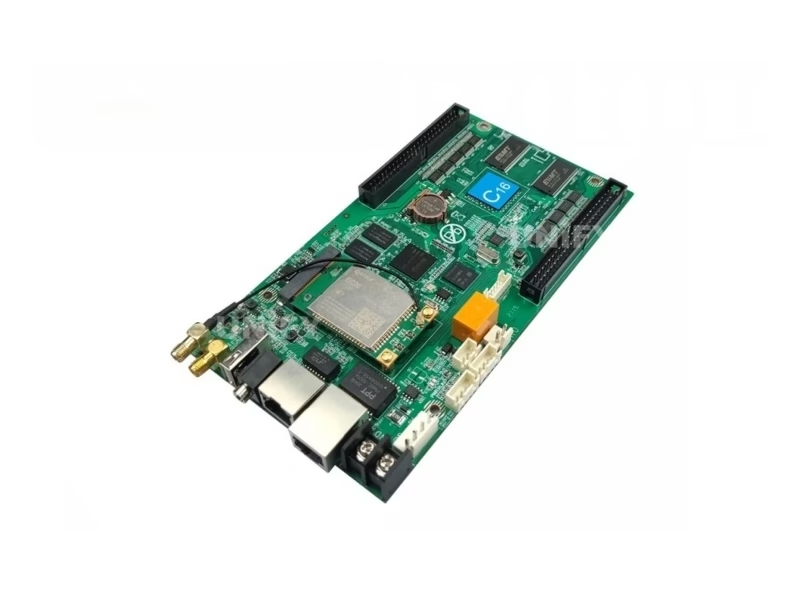
Why Is My Huidu LED Controller Showing a Black Screen?
Black screen is the most common fault and the most often mis-diagnosed. Work the path in order: power (both lights on?), source (is the input live and selected?), parameters (resolution, scan mode, polarity — a wrong parameter yields a blank wall), brightness (is it set to 0% or the screen scheduled off?), and program state (paused or empty). The connection-problem video below shows the A-series side; the general troubleshooting guide on this site covers the wall-side causes. A black screen with healthy indicator lights is a parameter or program fault, not a hardware fault — that single judgment saves most service calls.
The black-screen path also has a brightness trap worth naming: brightness set to 0% looks identical to a dead card, and the fix is a menu change, not a part. The same applies to a screen scheduled off — check the schedule before the spares drawer. On the dual-mode boxes, add the mode check: if the async program plays but the HDMI input stays black, the fault is in the source or the cable, not the processor — the architecture table later in this guide maps that judgment.
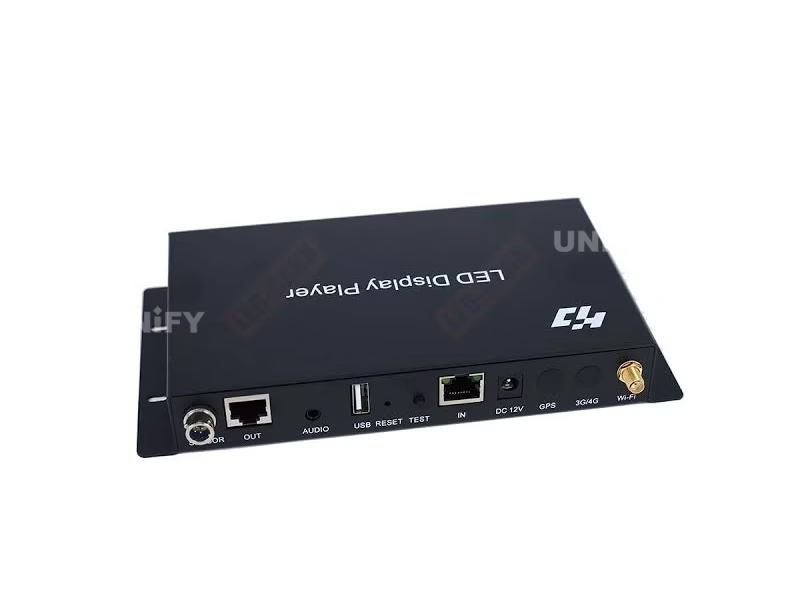
Huidu Official — connection problems and solutions about the dual-mode display player A6
Why Can’t HDPlayer Detect My Huidu LED Controller?
Detection failure on a Huidu controller has a short checklist, and the HDPlayer workflow is covered in the software guide. In order: restart the computer after install (the classic first-machine miss), check the firewall — a Windows update can silently drop the install-time exception, disable it temporarily to test, verify the cable and try another port, and confirm the card is powered (the indicator light again). Note the A/C-series cards auto-identify by controller ID, so there is no IP configuration to fight; where a manual network path is used, keep the computer and the card on the same segment. The official A4/A5/A6 problem-solving video below walks the software-side list, and the NovaLCT detection guide on this site covers the same class of problem on the NovaStar side.
Huidu Official — how to solve common problems of HDPlayer software controller A4 A5 A6
Why Is the Huidu LED Screen Garbled or Scrambled?
Garbled or scrambled output is the parameter-and-mapping family of faults. First suspect: screen parameters — scan mode, data polarity, OE polarity and color bits must match the module, and the signal cable guide covers the ribbon side. Second: the data-group mapping — a mismatched data group produces exactly this symptom, and the official data-group exchange video below (14,925 views) is the definitive fix for HUB-port faults on the VP and C classes. Third: receiving-card mapping, where pixel assignments must match the cabinet wiring order; incorrect mapping shows as black areas or mispositioned content. Run the test button first to isolate a cabling fault from a parameter fault — the same discipline the C16C page recommends.
The test button is the cheapest instrument in the box: after smart setting, each press cycles red, green, blue, white and shaded test lines. A clean test pattern proves the card, the modules and the ribbons — the fault is in the content or the parameters. A broken pattern isolates the bad module or the bad ribbon. Run it before touching any other setting, and keep the result in mind when reading the mapping diagnostics; the uneven-luminance guide on this site covers the panel-side cases the test button cannot see. The same test isolates the sync side: a processor driving a clean test pattern with a garbled live input points at the source chain, not the processor — the judgment that closes the architecture table below.
Huidu Official — data group exchange to resolve the HUB port faulty problem
How Do You Reset or Re-flash a Huidu LED Controller?
When parameters and connections are clean but the behavior is still wrong, reset and firmware are the final two steps. The factory reset is a five-second hold on the reset pinhole — the standard first move on a card that arrives with a previous project’s parameters. Firmware re-flashing runs inside HDPlayer and matters more on Huidu cards than on most: the C16C’s loading grew from 120,000 to 204,800 pixels through a firmware revision, so a card running old firmware behaves like the old spec — check the version before diagnosing anything else. The official C16C reset video below shows the five-second reset, and the price guide notes the firmware-version discipline at procurement time.
The reset habit has a boundary worth stating: a five-second factory reset clears parameters, not storage. If the card still shows the previous project’s content after reset, that content lives in the program memory and the fix is to re-send a fresh batch from HDPlayer — the reset never erases programs on its own. Operators who expect a reset to clear everything are the ones who call back the next day with the same symptom.
Huidu Official — how to reset the C16C controller
How Do You Troubleshoot Huidu LED Control Systems by Architecture?
The architecture decides where the fault lives. On an async card or box (A3/C-series), faults sit in the program, the storage or the U-disk path — content is the first suspect after the lights. A program that played yesterday and does not today is a content or storage question, not a hardware one: re-send the batch, try the U-disk path, and check whether the card fell back to an old program region. On a dual-mode player (A5/A6L), add the HDMI path: async playing but HDMI black points at the source or cable, not the box. On a sync processor (VP210-class), the source chain is the first suspect — the processor comparison documents the input differences. The smart-setting wizard handles the parameter side of every architecture, as the official video below shows.
Huidu Official — smart setting for null point inserted setting in HDPlayer
When Should You Call a Professional for a Huidu LED Controller?
The safety lines are absolute: smoke, burning smell, water inside the cabinet, or a completely dead card after a power check — stop and call. Below that line, the five-step order resolves the field faults, and the remaining cases are component swaps: a dead card is replaced with a spare, and the spares discipline from the price guide (one per ten installed) means the swap takes ten minutes, not a shipping wait. The maintenance guide and the P6 repair guide on this site cover the cabinet side of the same discipline.
The swap discipline deserves one more sentence, because it is where operators save the most time. When the five-step order ends at a dead card, replace it with the spare — but record the fault first: model, firmware version, indicator state and the step where it failed. A record of ten swaps tells the next buyer which model and firmware to specify, and it is exactly the data the price guide’s firmware discipline is built on.
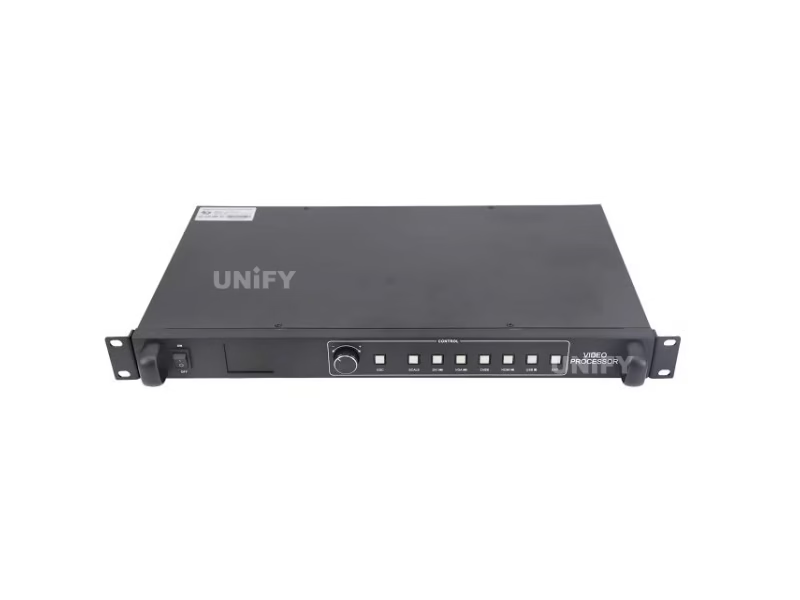
How to Troubleshoot a Huidu LED Controller: Final Checklist
The Huidu LED controller troubleshooting routine compresses into a card you can keep beside the rack: (1) power — both lights on? (2) lights — red flashing means firmware, red-on-green-off means signal or parameters; (3) connections — reseat Ethernet, USB and HUB ribbons; (4) parameters — resolution, scan, polarity, brightness level, program state; (5) reset and re-flash — five-second reset, then firmware in HDPlayer. Software-side faults dominate, so steps 4 and 5 resolve most calls — and when they do not, the spare in the cabinet bay finishes the job in ten minutes, with the fault logged for the next buyer. Run the order in sequence every time — skipping the indicator read on a black screen is how a parameter fault becomes a replaced card, and the replaced card becomes the same fault a week later. Five steps, in order, every time — that is the whole routine, and it is the routine this guide was built on — for the A-series boxes, the C-series cards and the VP processors alike.
Unify LED is an LED screen manufacturer in Changsha, China, supplying the full Huidu line with 2-year warranty support and spare stock at the factory — send the indicator state and the model number, and the diagnosis email comes back with the fix, the video and the part number. The next guide in this series collects the Huidu application cases that prove the line in the field, and the HDPlayer guide and the price guide sit beside it in this series.
Two habits close the loop on every fault. First, photograph the symptom before touching anything — a garbled screen photo and an indicator-state photo travel to support in the same message and cut the back-and-forth in half. Second, keep a one-line fault log per site: date, symptom, indicator state, fix, time spent. After five entries, the pattern of the site — which cabinet, which cable, which weather — becomes visible, and the next fault is predicted before it happens. The five-step order fixes the screen; the log fixes the site.
Related: browse the full Huidu LED controller catalog — 12 models across four product lines, free HDSet / HDPlayer / HD Show software, cloud remote control without a subscription, and factory-direct pricing.