
Troubleshooting Synchronous LED Display Playback — Common Issues and How to Fix Them Fast
Troubleshooting synchronous LED display playback issues follows a systematic signal-chain approach: start at the source, work toward the screen. When an LED wall goes black, flickers, tears, or displays wrong colors, the root cause is almost always at one of four points in the synchronous playback chain — the video source, the cable, the sending card/processor, or the receiving cards. Jumping to conclusions (blaming the processor when the HDMI cable is loose) is the single biggest time-waster on job sites.
This guide organizes the most common synchronous playback failures by symptom, provides the diagnostic steps to isolate the cause, and gives the fix for each scenario — ordered from most likely to least likely.
What Are the Most Common Symptoms When Troubleshooting Synchronous LED Display Playback?
| Symptom | Check First | Then Check |
|---|---|---|
| Black screen / No signal | HDMI cable connection | Source output resolution, EDID |
| Flickering on camera | Refresh rate < 1920Hz | No genlock, low grayscale bits |
| Image tearing / horizontal line | Genlock not connected | Mosaic sync, phase offset |
| Wrong colors / color shift | RCFG file mismatch | Driver IC incompatibility |
| One section dark | Ethernet cable to that section | Port failure, receiving card fault |
| Image offset / wrong position | Screen connection map | X/Y coordinates in mosaic |
Why Does a Synchronous LED Display Show a Black Screen or No Signal?
Scenario: The processor LCD shows “No Signal” or the LED wall is completely black despite all devices being powered on.
Cause A: Loose or faulty HDMI/DVI cable (80% of cases)
Check: Is the processor LCD showing “No Signal” on the active input? Fix: Reseat both ends of the cable. Swap with a known-working cable. If using an HDMI extender or balun, bypass it temporarily with a direct short cable to isolate whether the extender is the problem.
Cause B: Wrong input selected on processor
Check: Press the input source button on the front panel or check V-Can — is the active input the one your cable is plugged into? Fix: Switch to the correct input. If you plugged into HDMI 2 but the processor is set to HDMI 1, you will see No Signal on an otherwise perfectly functioning system.
Cause C: Source output resolution exceeds processor capability
Check: The processor LCD may show “Out of Range.” Fix: Connect the source to a regular monitor first. Reduce the output resolution to within the processor’s supported range (VX1000: max 3840×1080@60Hz). Then reconnect to the processor. See our EDID settings guide to prevent this from recurring.
Cause D: EDID negotiation failure
Check: The source shows the processor as a display but cannot output to it. More common with MacBooks and USB-C adapters. Fix: Unplug and replug the HDMI cable to force EDID re-read. If persistent, connect through an EDID emulator (hardware dongle that presents a fixed EDID) between the source and processor.
How to Fix Screen Flickering on Camera During Synchronous LED Display Playback?
Scenario: The LED wall looks fine to the naked eye, but any camera — smartphone or professional — captures flickering, dark bands, or pulsing.
Cause A: Refresh rate too low
Check: In NovaLCT, go to Receiving Card → Performance Settings. What is the refresh rate? Fix: Set to 1920Hz minimum for smartphone cameras, 3840Hz for broadcast cameras. Send to all receiving cards and save. Test with a phone camera at 1/120s shutter. For details: LED display refresh rate guide.
Cause B: No genlock on camera-facing wall
Check: Is a genlock cable connected to the processor’s Genlock IN? Does the LCD show “Genlock Locked”? Fix: Set up genlock with a sync generator. Without genlock, even 3840Hz will show scan lines on professional cameras at certain shutter angles. See genlock guide.
Cause C: Grayscale bit depth too low
Check: In Performance Settings, what is the grayscale setting? Fix: Increase to 14-bit or higher. At 3840Hz refresh, some receiving cards automatically reduce grayscale to maintain timing — you may need to choose between 3840Hz@12-bit and 1920Hz@14-bit depending on whether camera flicker or color banding is more objectionable for your application.
What Causes Image Tearing and Horizontal Lines in Synchronous LED Display Playback?
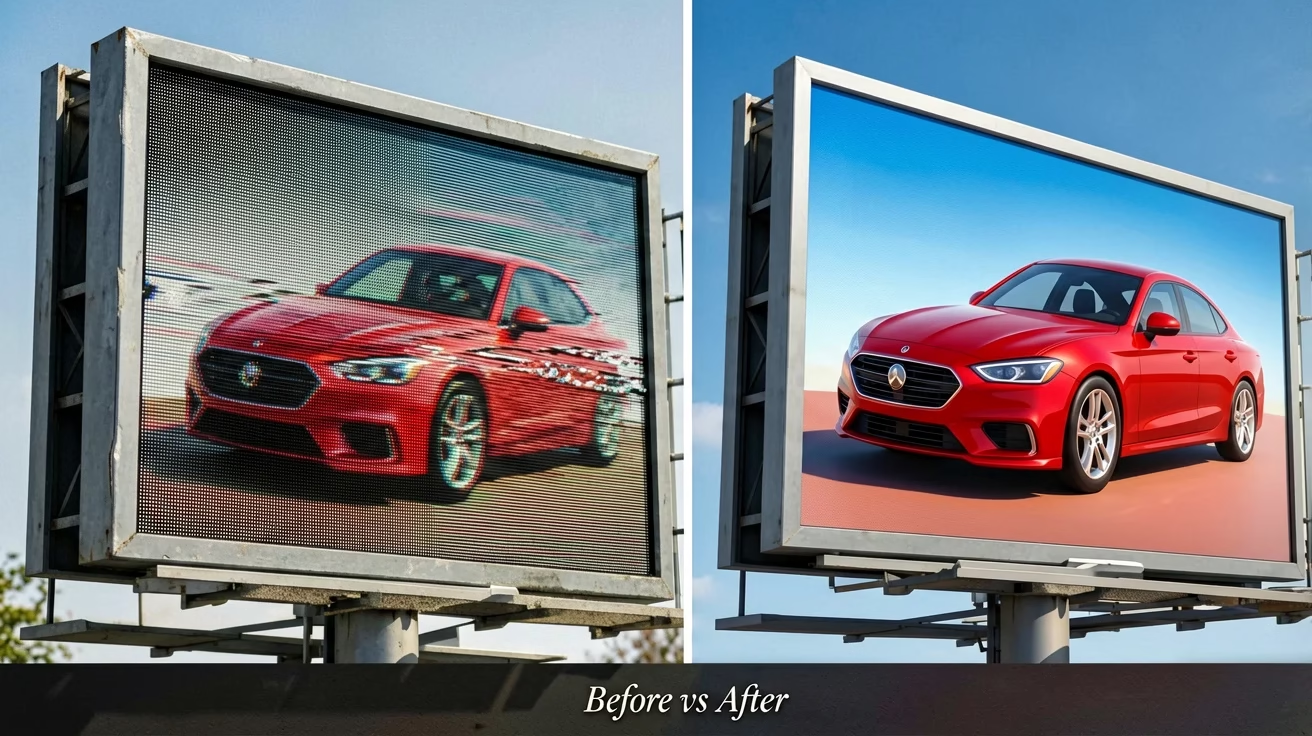
Scenario: A visible horizontal tear line appears, especially noticeable during fast motion or camera pans. In mosaic setups, the tear aligns with the boundary between processors.
Cause — Genlock missing in multi-processor setup: Each processor refreshes on its own clock. Even identical models have slightly different crystal oscillator frequencies (±50ppm). Over time, the refresh cycles drift apart. Fix: Connect BNC genlock cables between all processors. Designate one as Sync Master. Verify all show “Genlock Locked.” For mosaic, the tear line between processors should disappear.
Why Do Wrong Colors or Color Shifts Happen in Synchronous LED Display Playback?
Scenario: The entire screen or specific cabinets show incorrect colors — red tint, swapped red/blue, or washed-out appearance.
Cause A — RCFG file mismatch: The receiving card configuration does not match the physical LED module. This is the most common cause after replacing a receiving card or cabinet. Fix: Reload the correct RCFG file from your LED screen manufacturer. Send to the affected receiving cards. Verify the Module Resolution, RGB order, and Driver IC type match the physical module.
Cause B — Custom firmware replaced with standard: See our firmware upgrade guide — Section 10, Scenario 4.
What to Do When Part of the Screen Goes Dark During Synchronous LED Display Playback?
Scenario: One section — typically a vertical strip or a block of cabinets — is black while the rest of the screen displays normally.
Diagnostic: In NovaLCT, use Detect Communication Status (Screen Connection tab). Receiving cards on the dark section will show red. Most likely cause — Ethernet cable fault: The Cat6 cable to the first cabinet in the dark chain is loose, damaged, or unplugged. Fix: Reseat both ends. Replace the cable if damaged. If the section spans exactly one Ethernet port’s worth of cabinets, that specific port or its cable is the problem.
How to Systematically Diagnose Synchronous LED Display Playback Issues?
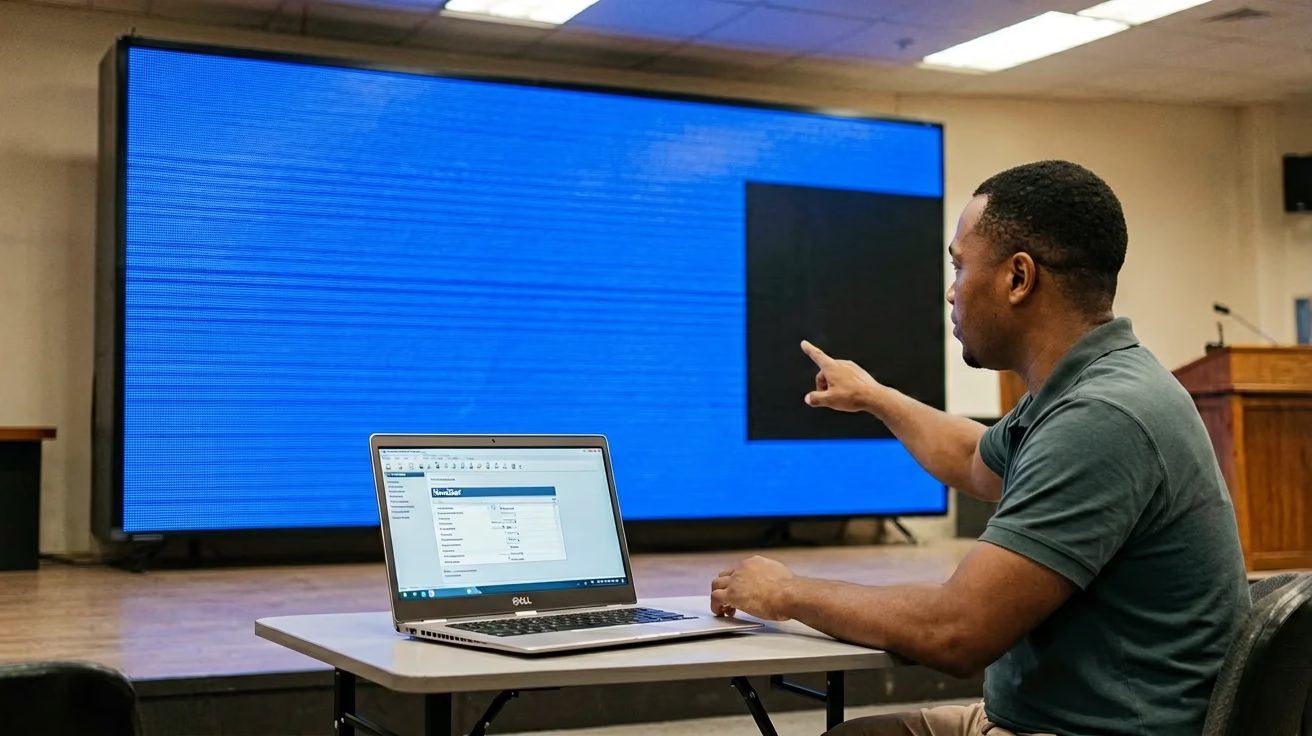
When faced with an unknown playback issue, follow this order — it isolates the problem from source to screen in the fewest steps:
- Check the processor LCD: Does it show signal lock? Input resolution? Any error messages? This immediately tells you whether the problem is before or after the processor.
- Test with a known-working source: Connect a different laptop or media player with a known-working HDMI cable. If the problem disappears, the original source or its cable is the culprit.
- Run the processor’s built-in test pattern: Press the TEST button on the front panel. If the test pattern displays correctly on all cabinets, the processor and receiving cards are healthy — the problem is upstream (source/cable/EDID).
- Check Detect Communication Status: In NovaLCT, verify all receiving cards show green. Red cards indicate a network/cable fault on that specific chain.
- Verify RCFG and firmware versions: Are all receiving cards on the same firmware version? Is the RCFG file correct for the module type? Mismatches cause color and display problems that look like hardware failures.
- Contact support: If all above steps pass and the problem persists, document the symptom with a photo or video and contact your LED screen manufacturer’s technical support.
Where to Go Next After Troubleshooting Synchronous LED Display Playback?
Troubleshooting synchronous LED display playback issues is a process of elimination along the signal chain: source → cable → processor → receiving cards → modules. The processor’s TEST pattern function is your most powerful diagnostic tool — it instantly tells you whether the problem is in the video feed (test pattern works = source/cable/EDID issue) or in the LED hardware (test pattern fails = processor/receiving cards/modules issue). Keep a known-working HDMI cable and a spare laptop in your kit. Both cost less than an hour of troubleshooting time on-site.