
LED Display Uneven Brightness Troubleshooting: Diagnose & Fix Brightness Inconsistency
Published: 2026-07-17 | Reading time: 7 min | UnifyLED Engineering Team
One cabinet glows noticeably brighter than its neighbor. A horizontal band of modules appears dimmer than the rest of the screen. The left half of the display has a warmer color temperature than the right half. These are the faces of brightness inconsistency — the most visually distracting fault an LED display can have, because unlike a dead module that goes unnoticed at distance, uneven brightness is visible from every seat in the venue. Effective LED display uneven brightness troubleshooting is not about randomly swapping modules — it is about reading the failure pattern to identify whether the root cause is software configuration, firmware mismatch, calibration data, power distribution, or LED batch variation. This guide provides the complete diagnostic methodology. As a LED screen manufacturer, we resolve brightness uniformity issues at both the factory calibration stage and in the field.
What Does the Fault Area Pattern Reveal When Troubleshooting LED Display Uneven Brightness?
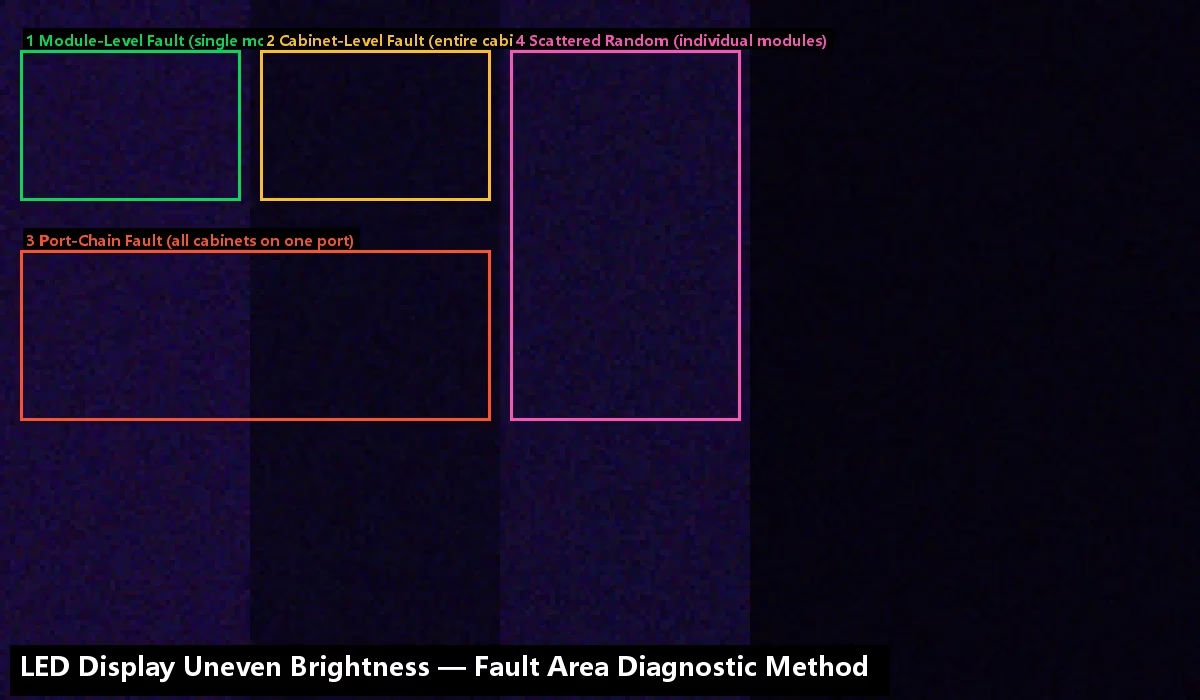
Before opening a single cabinet, observe the shape and size of the brightness anomaly. The physical extent of the affected area is the most powerful diagnostic clue in LED display uneven brightness troubleshooting. Match what you see to one of these four patterns:
Single module brighter or dimmer: If the affected area exactly matches one module (typically 250×250mm or 320×160mm), the fault is module-level: a flat cable issue, a module from a different production batch, or incorrect calibration coefficients on that specific position. Swap the module with an adjacent one — if the brightness difference follows the module, it is a module hardware or batch issue. If the difference stays at the original position, the receiving card configuration or calibration data for that port is the cause.
Single cabinet brighter or dimmer: If the affected area exactly matches one cabinet (typically 500×500mm or 500×1000mm), the fault is cabinet-level: a power supply with incorrect output voltage, a receiving card with different firmware or RCFGX file, calibration coefficients enabled on this cabinet but disabled on others, or a brightness mode mismatch. Check the receiving card parameters first — a single cabinet with a different refresh rate or brightness efficiency value is the single most common cause. For guidance on parameter verification, see our NovaLCT sending card detection guide for accessing card settings.
All cabinets on one Ethernet port: If every cabinet connected to a specific sending card output port shows the same brightness deviation, the issue is upstream: check the sending card’s port-level brightness settings and verify the RCFGX file sent to that port chain. This pattern is rare but highly diagnostic when found.
Random scattered modules across the entire display: This pattern indicates mixed production batches — modules from different manufacturing dates with different LED chip characteristics were installed on the same screen. No software fix can fully compensate for severe batch variation; module replacement or professional calibration is required.
How Do Software and Configuration Errors Cause LED Display Uneven Brightness?
Approximately 60% of brightness inconsistency cases are caused by software or configuration mismatches — not faulty hardware. These are the fastest to fix once correctly diagnosed.
2.1 Brightness Mode and Gamma Mismatch
NovaLCT offers two brightness control modes: Grayscale mode (brightness is adjusted through PWM duty cycle, preserving full grayscale depth) and Contrast mode (brightness is adjusted through LED current, which may reduce grayscale depth but achieves higher peak brightness). If some cabinets are set to Grayscale mode while others are set to Contrast mode, the perceived brightness will differ even at the same numeric brightness setting. Fix: in NovaLCT, open Brightness → Screen Adjustment, verify all receiving cards use the same mode and the same gamma value (typically 2.8 for indoor, 3.2 for outdoor), then click “Save to HW” to synchronize all cards.
2.2 RCFGX File Inconsistency
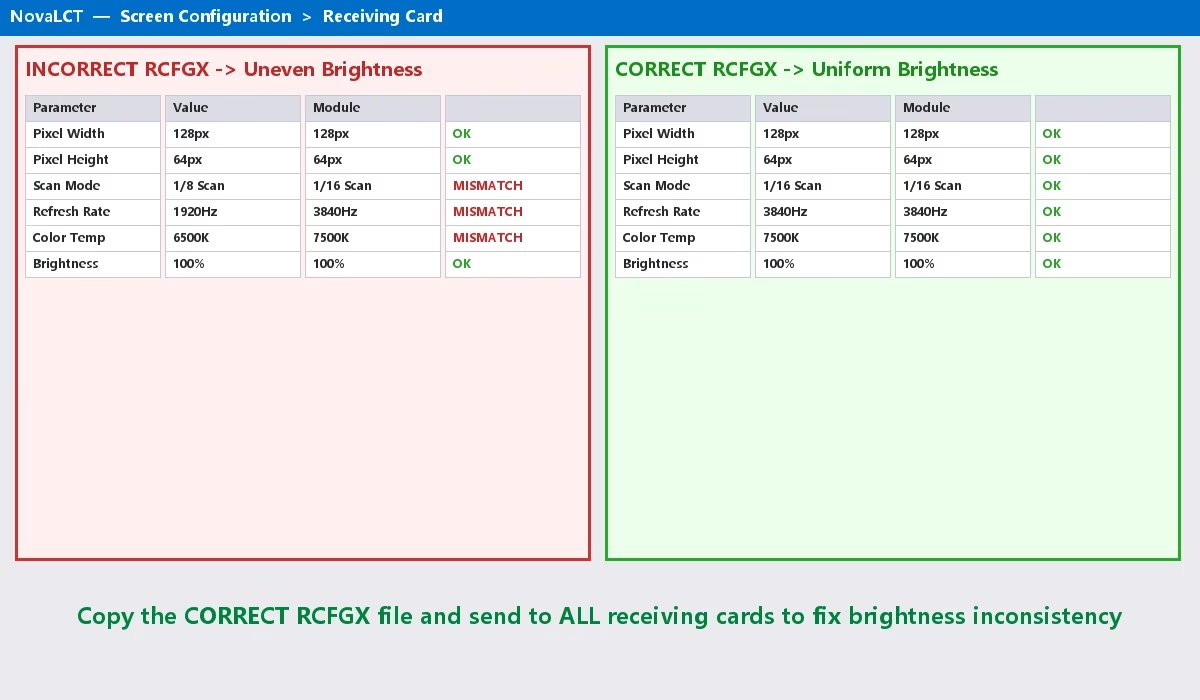
The receiving card configuration file (RCFGX) contains parameters that directly affect perceived brightness: refresh rate, shift clock frequency, and brightness efficiency — a percentage value shown at the bottom of the receiving card parameter window. Two cards with different brightness efficiency values (e.g., 71.99% vs 52.38%) will produce visibly different brightness even with identical modules and power supplies. Fix: read back the configuration from a known-good cabinet (one with correct brightness), save the RCFGX file, then send it to all receiving cards on the display. Always back up the correct RCFGX file before making configuration changes. See our LED display configuration and system debugging guide for the complete RCFGX management workflow.
2.3 Firmware Version Mismatch
Receiving cards running different firmware versions may process pixel data with slightly different timing or drive algorithms, producing brightness variation across the display. Fix: in NovaLCT, go to Setting → Hardware Information to view the firmware version of every receiving card. If multiple versions are present, download the latest firmware package from NovaStar’s website and use Tools → Program Update to push the same version to all cards. Never update firmware immediately before a live event — always test on a single cabinet first.
2.4 Calibration Coefficient State
Pixel-level calibration coefficients stored in each receiving card correct individual LED brightness and color variations. If calibration is enabled on some cabinets but disabled on others, the calibrated cabinets will appear more uniform while uncalibrated cabinets will show raw LED variation. Fix: in NovaLCT, go to Tools → Calibration → Screen Calibration. Verify the calibration state is consistent — either all enabled or all disabled. If a cabinet shows “no calibration data,” the coefficients were never loaded onto that receiving card. Reload the calibration database from the original calibration file. If the file is lost, the cabinet must be re-calibrated using NovaCLB with a supported colorimeter.
Why Do Power Supply and LED Batch Variation Cause LED Display Uneven Brightness?
When software configuration is verified correct and LED display uneven brightness troubleshooting points to hardware, two root causes dominate: inconsistent power delivery and mixed LED module batches.
3.1 Power Supply Voltage Inconsistency
LED brightness is directly proportional to drive current, which is a function of supply voltage. A power supply outputting 4.8V instead of the nominal 5.0V will produce visibly dimmer modules on its circuit. This 0.2V difference — just 4% below nominal — is enough to create a noticeable brightness step between cabinets. Diagnosis: measure DC voltage at each power supply’s output terminals with a calibrated multimeter. Compare readings across all cabinets. A difference of more than 0.1V between any two power supplies warrants investigation. Fix: replace the underperforming power supply with one matching the specifications of the majority (same brand, same model, same rated output — typically 5V, 40A or 60A). Never mix 200W and 300W power supplies on the same display — their voltage regulation characteristics differ under load, producing brightness variation that changes with image content.
Power cable voltage drop: if all modules on a single power cable are uniformly dimmer than modules on a different power cable in the same cabinet, measure voltage at the module end of the cable. Long, thin-gauge power extension cables introduce voltage drop under load. Replace with shorter, heavier-gauge cables (minimum 1.5mm² copper for runs over 1 meter).
3.2 Mixed LED Module Batches
LED chips manufactured at different times — even from the same supplier and same product code — exhibit variation in luminous efficiency (brightness per milliamp of current) and dominant wavelength (perceived color). When modules from different production batches are installed on the same display, the brightness difference is structurally permanent — the LEDs themselves have different characteristics. This is most common when spare modules are added to an existing display months or years after the original installation. The original modules have accumulated thousands of hours of use and natural brightness decay, while the new modules are at full initial brightness.
Partial mitigation: NovaLCT’s Multi-batch Adjustment function (Tools → Multi-batch Adjustment) can reduce visible differences by adjusting target brightness and color coordinates for the newer modules to better match the older ones. This is a software compensation, not a physical fix — it narrows the gap but cannot eliminate it. Complete fix: replace modules so that the entire display uses LEDs from the same production batch. When ordering spare modules from a LED screen manufacturer, always specify the original order’s batch number and request binning to the original LED specifications. The manufacturer can select LEDs from inventory that match your existing modules’ brightness and wavelength bins.
How Can Calibration Fix LED Display Uneven Brightness and Restore Uniformity?
When software configuration and power delivery are both verified correct, and modules are from the same batch, residual brightness non-uniformity is addressed through calibration.
Factory calibration (point-by-point): performed by the manufacturer using a scientific-grade imaging colorimeter. Each pixel’s brightness and color coordinates are measured against a reference, and individual correction coefficients are computed and stored. Factory calibration achieves the highest uniformity — typically within ±2% brightness deviation and ΔE < 3 color difference across the entire display. If your display was factory-calibrated but the coefficients have been lost (e.g., after receiving card replacement), contact the manufacturer to obtain the original calibration database.
Field calibration (NovaCLB): for on-site re-calibration, NovaStar’s NovaCLB software paired with a supported colorimeter (such as the Klein K10-A or CA-410) can generate new calibration coefficients. This process requires: the display fully assembled in its final position, controlled ambient lighting (dark environment preferred for indoor displays), the colorimeter positioned at the correct measurement distance, and 30–60 minutes for a typical 10m² display. Field calibration cannot match factory calibration precision due to ambient light interference and measurement geometry limitations, but it can restore acceptable uniformity when factory data is unavailable.
Manual coefficient adjustment: for targeted fixes — a single cabinet that remains slightly off after global calibration — NovaLCT allows manual adjustment of red, green, and blue gain coefficients per receiving card. This is a fine-tuning tool, not a substitute for proper calibration. Adjust in 1% increments and evaluate the result on a full-white test pattern before proceeding. For comprehensive calibration guidance, see our LED display configuration guide.
What Is the 5-Step Diagnostic Checklist for LED Display Uneven Brightness Troubleshooting?
Follow these steps in order. Each step addresses one layer of the brightness control chain, from highest-level (software mode) to lowest-level (LED hardware).
Step 1 — Unify brightness mode and gamma: In NovaLCT Brightness settings, verify all receiving cards use the same mode (Grayscale or Contrast) and same gamma value. Use “Save to HW” to synchronize. This resolves ~25% of cases.
Step 2 — Unify RCFGX and firmware: Read back parameters from a correct cabinet and send to all cards. Check firmware versions via Hardware Information. This resolves ~25% of cases.
Step 3 — Verify calibration state: Ensure calibration is either enabled on all cabinets or disabled on all cabinets. Reload calibration data to any card showing “no calibration data.” This resolves ~20% of cases.
Step 4 — Measure power supply voltage: Use a multimeter to measure DC output at each power supply. Replace any unit deviating more than 0.1V from the majority. Verify power cable gauge is adequate. This resolves ~20% of cases.
Step 5 — Address batch variation: For mixed-batch modules, apply Multi-batch Adjustment in NovaLCT as a temporary mitigation. For a permanent fix, replace modules so the entire display uses LEDs from a single production batch. This resolves ~10% of cases.
If all five steps fail to resolve the brightness inconsistency, the display requires professional field calibration with a colorimeter, or there is an underlying hardware fault beyond the scope of routine diagnostics. For persistent issues, our basic debugging of LED displays guide covers additional diagnostic resources. 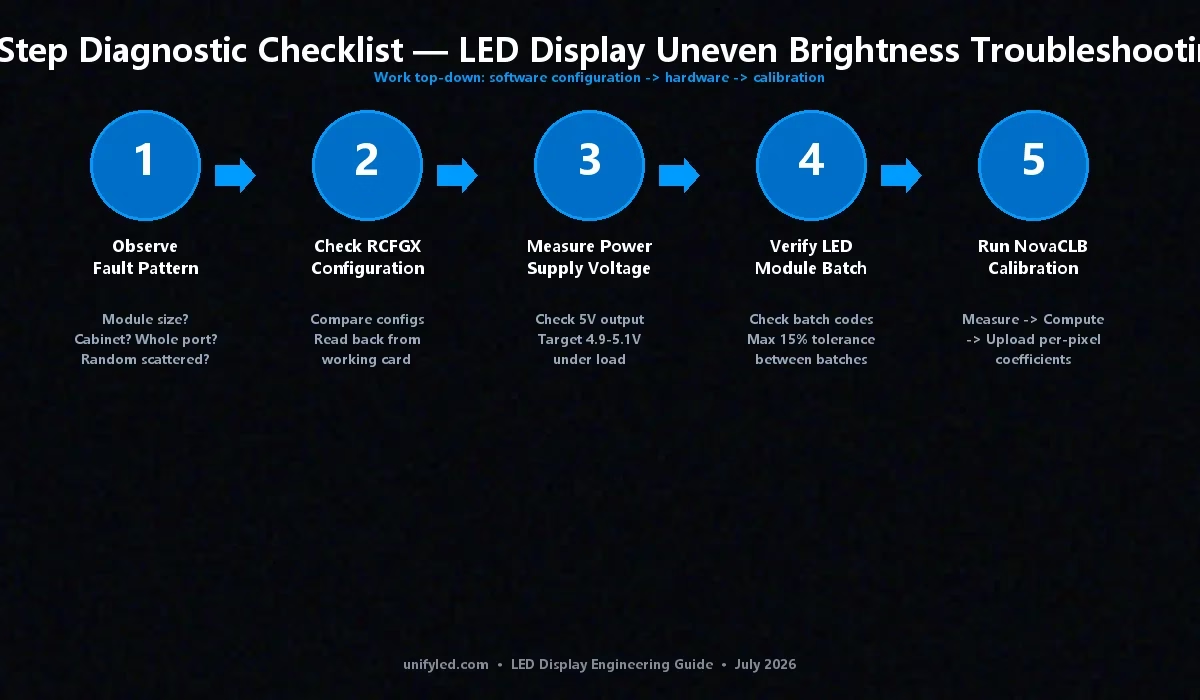
How to Prevent LED Display Uneven Brightness Inconsistency in Future Installations?
Always order spare modules from the same LED batch. When placing the original order, include 5–10% spare modules manufactured concurrently with the main batch. Store them in a climate-controlled environment to slow brightness decay. Document and back up every RCFGX file, firmware version, and calibration database. Store backups in at least two locations — the configuration laptop and cloud storage. Use identical power supplies throughout the display. Order all power supplies for a project from a single production lot. Perform a uniformity check before every live event. Display a full-white test pattern at 50% brightness and walk the entire screen surface — brightness differences visible on a white field are the most sensitive indicator of developing uniformity issues. For complete system support from a qualified LED screen manufacturer, request factory calibration data with every display order.
Where to Go Next After Troubleshooting LED Display Uneven Brightness?
LED display uneven brightness troubleshooting succeeds when you let the failure pattern guide the diagnosis. A single dim module points to a flat cable or batch issue. An entire dim cabinet points to RCFGX mismatch, firmware mismatch, or power supply voltage. Random scattered dim modules point to mixed LED batches. Each pattern isolates the root cause to a specific layer of the brightness control chain — software configuration, firmware, calibration data, power delivery, or LED hardware — and each layer has a defined fix. The five-step checklist above resolves brightness inconsistency without guesswork, without unnecessary module replacement, and without the technician ever having to say “I don’t know why it looks like that.” For technical support, contact UnifyLED — factory-direct LED displays with full calibration documentation and lifetime configuration support.
Need Help with LED Display Calibration?
Factory-direct LED displays with pre-loaded calibration data. Free technical consultation for brightness uniformity and color calibration.
legidatechled@gmail.com | +86-191-18802497