
Contact us
- Home
- »
- LED Display Technology
- »
- 5 Minutes LED Screen Flickering Fast Troubleshooting
5 Minutes LED Screen Flickering Fast Troubleshooting
Discover the top causes of led screen flickering—from unstable power to refresh rate mismatches—and follow our step-by-step troubleshooting guide to stop the flicker permanently.
There is nothing more damaging to a visual experience than a stuttering, unstable display. LED screen flickering is a critical issue that can strike any setup, turning a high-end video wall into a distracting strobe light. But what exactly causes this phenomenon? Is it a sign of hardware failure, or simply a configuration mismatch?
In this guide, we move beyond basic guesswork. We will dissect the technical mechanics of screen flashing, drawing parallels with common devices like laptops and TVs to help you understand the core principles. Whether you are facing invisible scanning lines on camera or visible glitches on stage, this article provides the professional roadmap to identifying, fixing, and preventing flicker for good.
Table of Contents
1. What Is LED Screen Flickering?
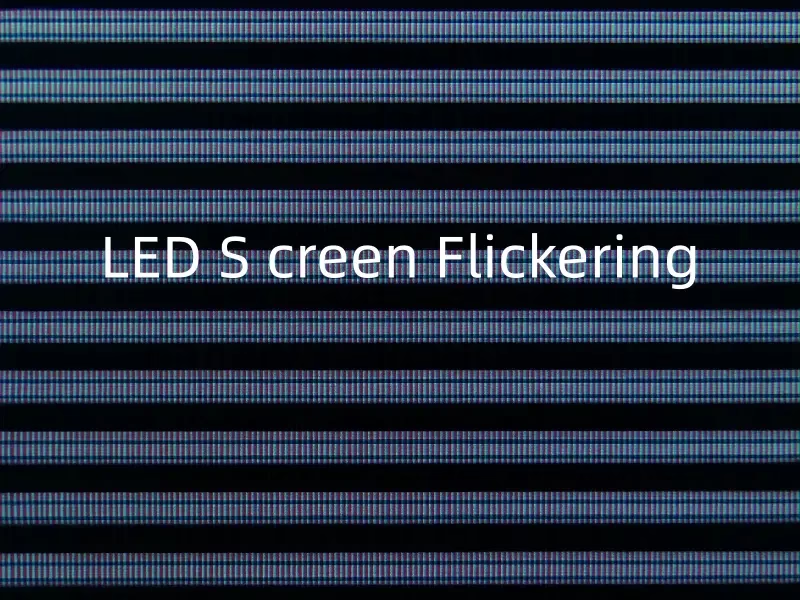
LED screen flickering is a phenomenon where the display’s brightness fluctuates rapidly and repeatedly, creating a distracting strobing effect. While the human eye interprets a functional screen as a static, smooth image, the display is actually turning its pixels on and off at high speeds. When this cycle is disrupted or too slow, the gap between the “on” and “off” states becomes noticeable, resulting in what users often describe as screen flashing.
Understanding this issue requires distinguishing between two types of flickering:
Visible Flickering: The strobing is visible to the naked eye. This usually indicates a severe hardware fault or a significant drop in the refresh rate (below 60Hz).
Invisible (Camera) Flickering: The screen looks fine to the audience, but black scanning lines or waves appear when viewed through a smartphone or camera lens. This is a common issue in broadcast environments.
LED vs. LCD Flickering: Understanding the Difference
To fix the problem, you must first identify the technology. Many users confuse direct-view LED issues with lcd flickering.
LCD Flickering: Liquid Crystal Displays (LCDs) rely on a backlight source. When an LCD flickers, it is often due to a failing cold cathode fluorescent lamp (CCFL) or a malfunction in the LED backlight dimming circuit.
LED Screen Flickering: Professional LED video walls are self-emissive (each pixel lights up independently). They use a technology called Pulse Width Modulation (PWM) to control brightness. If the refresh rate (the speed at which the IC driver updates the LEDs) is not synchronized with the content or camera shutter, it causes the screen to flash.
Why It Matters
This is one of the most persistent led screen problems faced by technicians and users alike. Whether you are operating a massive outdoor digital billboard or troubleshooting a flashing screen on a personal device, the impact is undeniable. Flickering not only degrades the visual quality of your content but can also cause severe eye strain and headaches for the viewer, damaging the professional image of your brand.
2. Why Is My Screen Flashing?
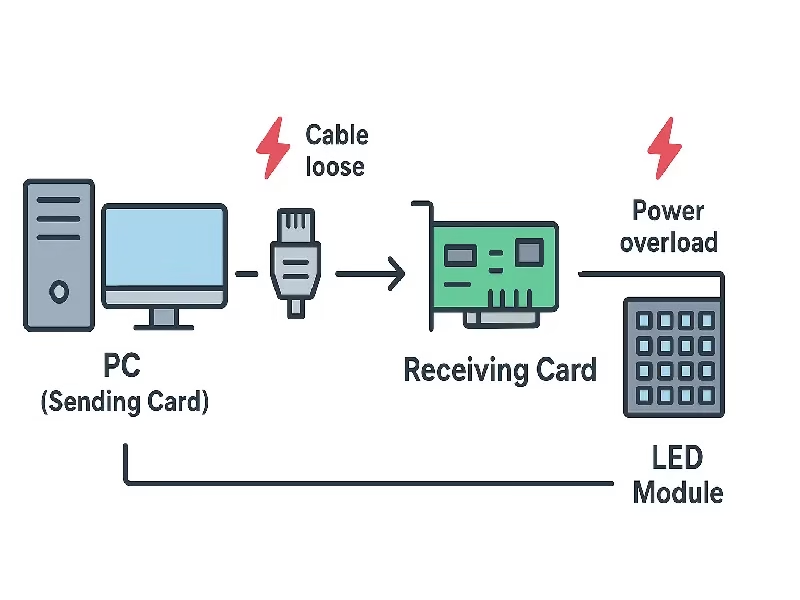
When you notice a flicker screen, the immediate assumption is often that the display is broken. However, flickering is rarely a sign of total failure. Instead, it is usually a symptom of a disruption in the communication chain between the power source, the control system, and the LED light beads.
To effectively troubleshoot common led screen issues, we must categorize the potential causes into two distinct areas: Hardware Malfunctions and Software Configuration.
Is Screen Flickering a Hardware Problem?
This is the most frequent question we receive. The short answer is: Yes, but not always in the way you think. While a physically damaged module can cause issues, the culprit is often the supporting infrastructure rather than the LEDs themselves.
Here are the most common hardware-related causes:
Loose Data Connections: In professional LED video walls, signals travel through RJ45 network cables and internal flat cables. If a cable is loose or damaged, the signal becomes intermittent, causing the screen flashing effect.
Power Supply Unit (PSU) Instability: LED screens require a steady voltage. If a power supply unit is overloaded or failing, it cannot provide consistent energy, leading to a strobe-like flicker.
Bad Sectors or Modules: Occasionally, a specific receiving card or LED module may fail, causing localized flickering in just one section of the wall.
The Software Factor: Drivers and Refresh Rates
Hardware is only half the battle. Often, the screen is physically perfect, but the instructions being sent to it are flawed. This is where software configuration plays a massive role.
Think of it this way: When a computer user searches for “how to fix flickering screen windows 10,” the solution is almost always to update the graphics driver or adjust the display settings. The exact same logic applies to professional LED screens.
Refresh Rate Mismatch: If your LED screen is set to a low refresh rate (e.g., under 1920Hz) but is playing high-speed content, visual artifacts and flickering will occur.
Incorrect Configuration Files (.rcfg): The “driver” for an LED screen is the RCFG file (in NovaStar systems). If this file does not match your specific module hardware, the screen will glitch or flash uncontrollably.
Gray Scale Settings: Improper gray scale settings can cause the screen to flicker when displaying dark content or during low-brightness transitions.
Whether you are dealing with led screen problems on a giant billboard or a small indoor display, the root cause is always either interrupted power/data (Hardware) or unsynchronized timing (Software). Identifying which one is responsible is the first step to a permanent fix.
3. How to Troubleshoot Professional LED Video Walls Flickering?
For technicians and business owners managing large-scale displays, a flickering screen is an emergency. Unlike consumer electronics, professional LED walls are modular systems. This means we can isolate and fix the issue without replacing the entire screen.
Follow this 4-step professional protocol to diagnose and resolve led screen flickering:
Step 1: Check Power Supply & Voltage
Power instability is the number one cause of a sudden screen flash. If the power supply unit (PSU) is overloaded or failing, it cannot maintain the steady current required to drive the ICs.
The Multimeter Test: Use a multimeter to check the VCC terminals on the power supply. The standard requirement is usually 5V.
Voltage Drop: If the reading drops below 4.8V or fluctuates rapidly, the PSU is defective or the cabling is too thin for the load. This lack of power causes the modules to reset repeatedly, resulting in a visible flash.
Step 2: Inspect Signal Cables (RJ45 & Flat Cables)
Data transmission in LED walls relies on a “daisy chain” structure. If one link is broken, everything downstream may flicker or go black.
RJ45 Network Cables: Check the main signal cable coming from the sending card and the cables connecting cabinets. A loose port or a low-quality CAT6 cable is a frequent culprit.
Ribbon (Flat) Cables: Inside the cabinet, flat cables connect the receiving card to the individual modules. If a specific section of the module is flickering, try reseating or replacing this flat cable.
Step 3: Adjust Refresh Rate in Sending Card Software
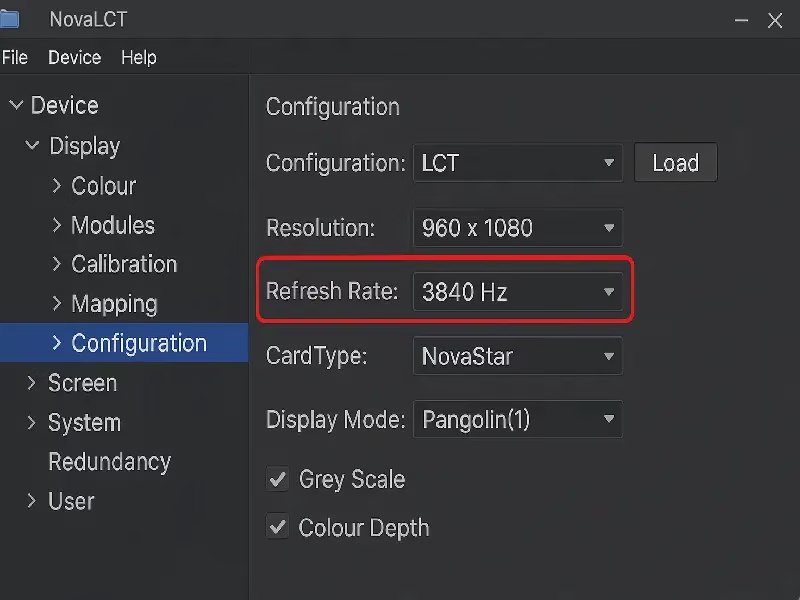
If the hardware connections are secure but you still experience led screen flickering (especially through a camera lens), the issue lies in the configuration.
Access Control Software: Open your LED control software (such as NovaLCT or LEDVision).
Modify Parameters: Navigate to the Screen Configuration page. Look for the “Refresh Rate” setting.
The Fix: If the current rate is standard (e.g., 1920Hz) and you see scanning lines, try increasing it to high refresh rates (3840Hz or higher) supported by your driver ICs. This “overclocking” ensures the LED cycle syncs better with cameras, eliminating the strobe effect.
Optimizing your refresh rate effectively requires understanding your input source. If you are unsure whether the issue lies with your video processor (FPS) or the screen hardware (Hz), check our comprehensive guide on the difference between Hz and FPS to diagnose the root cause.
Step 4: Replace Receiving Cards or Modules
If the problem persists in a specific area after checking power and software, you are likely dealing with a hardware component failure.
Cross-Testing Method: To confirm, swap the flickering module or receiving card with a known working one from a different part of the wall.
Identify the Fault: If the flickering moves to the new location, the component is dead. If the flickering stays in the original spot, the issue is likely the hub board or the background wiring.
4. What Windows & TVs Can Teach Us About LED Screen Flickering
While UnifyLED specializes in manufacturing large-scale professional video walls, the electronic principles causing flickering are often universal. By looking at how to fix flickering on everyday devices, we can better understand the complex hardware and software synchronization required for professional led screen flickering solutions.
Here is how common tech glitches mirror the challenges in industrial LED displays.
The Software Driver Factor: Lessons from Windows 10
One of the most searched tech questions globally is “how to fix flickering screen windows 10.” In 90% of these cases, the screen hardware is perfectly fine; the culprit is an outdated or incompatible display driver. Similarly, users facing lenovo laptop display issues often find that a simple software update resolves the flickering.
The Connection to LED Screens:
In the world of LED video walls, the “driver” is the .rcfg configuration file used by the Sending Card (e.g., NovaStar).
Just as a laptop flickers when its driver conflicts with the OS, a professional LED screen will suffer from severe screen flashing if the .rcfg file does not perfectly match the module’s chip specifications.
The Lesson: Before blaming the hardware, professionals always verify the “smart” side of the system—the software configuration.
The Refresh Rate Factor: TV vs. LED Video Walls
Consumers often complain about screen flickering tv issues or search for how to fix blinking tv screen problems. This is often caused by low refresh rates or backlight PWM dimming. To combat this, manufacturers now market flicker free tv technology.
The Connection to LED Screens:
However, there is a fundamental difference between lcd flickering (which relies on a backlight) and Direct-View LED flickering.
Consumer TVs: A standard TV runs at 60Hz or 120Hz. This is acceptable for the human eye but often results in scanning lines when filmed by a camera.
Professional LED Walls: Unlike home TVs, professional LED screens must perform at a much higher standard. We use high-end Driver ICs to achieve refresh rates of 3840Hz or higher.
The Lesson: If you used a standard TV screen as a stage background, it would likely show black bars on camera. Only a high-refresh-rate LED wall can ensure a flawless, broadcast-grade image.
5. Invisible LED Screen Flickering: Why Your Camera Sees Scanning Lines?
Have you ever looked at a massive stage screen that appeared perfect to your eyes, but when you pulled out your phone to take a photo, the display was covered in black waves? This is known as the “Moiré effect” or Camera-Specific Flickering.
Understanding why this happens is key to distinguishing between a broken screen and a simple configuration mismatch.
The Refresh Rate Mismatch: What Causes Camera Flickering?
The root cause of this phenomenon is a timing conflict between the hardware and the lens.
The LED Screen: Even when static, the screen turns on and off thousands of times per second (Refresh Rate).
The Camera: Your camera captures light in short bursts (Shutter Speed).
The Result: If the camera shutter opens exactly when the LED screen is in its “off” cycle, you capture a black bar or a screen flash on video.
How to Eliminate Scanning Lines and Screen Flash on Video
If you are running a live event or broadcast, here is how to sync your equipment to stop the flicker:
1. The Hardware Fix (Increase Hz):
This is the professional solution. You must increase the LED screen’s Refresh Rate in the software.
Standard screens run at 1920Hz.
Broadcast-grade screens (like UnifyLED’s) should be set to 3840Hz or higher.
Higher Hz means the pixels are “on” more often, leaving no gaps for the camera to catch.
2. The Camera Fix (Adjust Shutter):
If you cannot change the screen settings, adjust the camera to match the screen.
Lower your Shutter Speed (e.g., from 1/100 to 1/50).
This forces the camera to capture light for a longer duration, smoothing out the led screen flickering.
6. How to Stop LED Screen Flickering Before It Starts
The most effective way to solve led screen flickering is to prevent it during the purchasing and installation phase. While software patches can fix immediate bugs, long-term stability depends on hardware quality.
Here is how to choose the right components to ensure a flicker-free experience.
Prevention 1: Choosing High Refresh Rate ICs to Avoid Strobe Effects
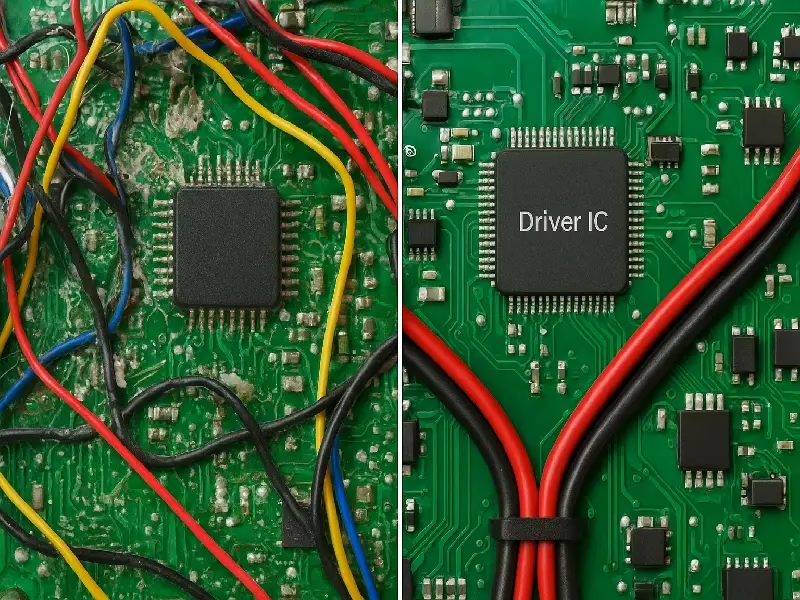
Not all LED modules are created equal. The component responsible for controlling the current flow is the Driver IC (Integrated Circuit).
The Risk: Low-end ICs often limit the screen to 1920Hz, which is prone to flicker screen issues under high-definition cameras.
The Solution: When buying an LED wall, explicitly ask for High Refresh Rate ICs (supporting 3840Hz or 7680Hz). This is the industry standard for preventing visible and invisible flickering.
Prevention 2: Stable Power Supply: The Key to Fixing Voltage-Related Flickering
As discussed in the earlier analogies (Section 4), unstable voltage is a primary trigger for screen flashing.
The Rule: Ensure your Power Supply Units (PSU) have a 20% load margin.
The Logic: Running a PSU at 100% capacity generates heat and resistance, causing voltage drops. By using high-quality power units and pure copper cabling, you eliminate the electrical fluctuations that cause the screen to blink.
Prevention 3: Routine Maintenance to Prevent Future LED Screen Problems
To avoid sudden led screen problems during an event, implement this quarterly check:
Tighten Connections: Vibrations can loosen power terminals, creating intermittent contact and sparking (flickering).
Check Signal Cables: Replace any RJ45 cables that show signs of wear or oxidation.
Update Firmware: Keep your NovaStar or Colorlight system updated to ensure the best synchronization logic.
7. FAQs: Quick Answers to Common LED Screen Flickering Questions
Yes. Even if the flickering is subtle or only visible on camera (invisible flickering), prolonged exposure can cause eye strain, headaches, and fatigue. In severe cases involving low-frequency screen flashing, it can trigger photosensitive epilepsy in vulnerable individuals. This is why maintaining a high refresh rate is not just about image quality—it is a safety requirement.
Not necessarily. In 80% of cases, led screen problems like flickering are caused by loose cables, unstable power, or bad software settings—all of which are repairable without replacing the expensive LED modules. Only when specific pixels are dead or color-distorted do you need to replace the hardware.
If the issue is loose cabling or software configuration (like the Jeep compass screen glitch analogy mentioned earlier), the cost is effectively zero—just your time. However, if the flickering is caused by cheap, low-refresh-rate driver ICs installed during manufacturing, the only way how to stop screen flicker permanently is to upgrade the LED modules, which can be a significant investment.
8. Summary
A flickering screen is more than just a technical glitch; for advertisers, event organizers, and broadcasters, it is a disaster that compromises audience engagement and damages brand reputation. Throughout this guide, we have explored the technical roots of led screen flickering, ranging from unstable power supplies and loose signal cables to the “invisible” scanning lines caused by low refresh rates. While troubleshooting steps like checking connections or adjusting software configurations can resolve immediate issues, they are often just temporary fixes for a deeper hardware problem.
The harsh reality is that no amount of software tweaking can force a low-quality driver chip to perform at a professional broadcast standard. To stop screen flashing permanently, the solution lies in the hardware you choose from the very beginning. At UnifyLED, we engineer our video walls with stability as a priority. By utilizing high-end Driver ICs (3840Hz+) and premium power distribution systems, we ensure that every pixel delivers a steady, brilliant performance—visible to the eye and flawless on camera.
Don’t let a strobe effect ruin your next event. Contact UnifyLED today for a display solution that is built to be flicker-free.
Reference:
https://en.wikipedia.org/wiki/Flicker_fusion_threshold
https://en.wikipedia.org/wiki/Refresh_rate
9. Recommend


CIOE 2026 LED Display Recap: Micro LED Moves From Lab to Production Line
CIOE 2026 LED display recap: Micro LED hits production lines — 8-inch red chips, 10,000-PPI engines, and what the 27th Shenzhen expo means for buyers.
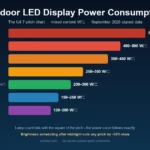
Outdoor LED Display Power Consumption: Your Pitch Sets Your Bill (2026)
Outdoor LED display power consumption: why pitch sets your annual bill – the full 7-pitch chart from P2.5 to P10, 2026 data.
P5 vs P6 Outdoor LED Display: P6 Banks 15–20% Past 10 m (2026)
P5 vs P6 outdoor LED display: 44% lamp gap, $550-900 vs $450-800 bands, the 10-meter money line and fleet economics.