
Contact us
- Home
- »
- LED Display Technology
- »
- Hz vs FPS: What Is the Difference and How Do They Work in LED Displays?
Hz vs FPS: What Is the Difference and How Do They Work in LED Displays?
For professional integrators and buyers, distinguishing between Hz (Refresh Rate) and FPS (Frame Rate) is not just about “smoothness”—it is about ensuring broadcast integrity. Mastering Hz vs FPS is the key to avoiding common pitfalls like on-camera flickering, scan lines, and motion artifacts.
In this guide, UnifyLED breaks down the technical relationship between frame rate input and refresh rate output, ensuring you have the knowledge to select high-performance solutions that deliver seamless, camera-ready visuals for any application.
Table of Contents
1. What Is Hz (Refresh Rate)?
Refresh Rate, measured in Hertz (Hz), defines the number of times your screen updates the displayed image per second. Think of it as the “speed limit” of your display’s hardware.
60Hz: Updates the image 60 times every second.
120Hz: Updates the image 120 times every second.
The Golden Rule: The higher the Hz, the smoother and more fluid the motion appears to the human eye.
Higher refresh rates are essential for reducing visual fatigue and ensuring stability during fast-paced content, such as live sports or competitive gaming.
The Critical Role of Hz in LED Displays
In the world of professional LED screens, refresh rate serves a different but equally vital purpose: Camera Compatibility.
A low refresh rate often results in black scan lines (moire patterns) or visible flickering when the screen is captured by a smartphone or broadcast camera. To solve this, premium commercial displays—like those manufactured by Unify LED—utilize high-performance IC drivers to achieve refresh rates of 1920Hz, 3840Hz, or even 7680Hz.
Bottom Line: Hz measures your screen’s updating speed. A high refresh rate is the secret to crystal-clear, flicker-free, and broadcast-ready visuals.
2. What Is FPS (Frame Rate)?
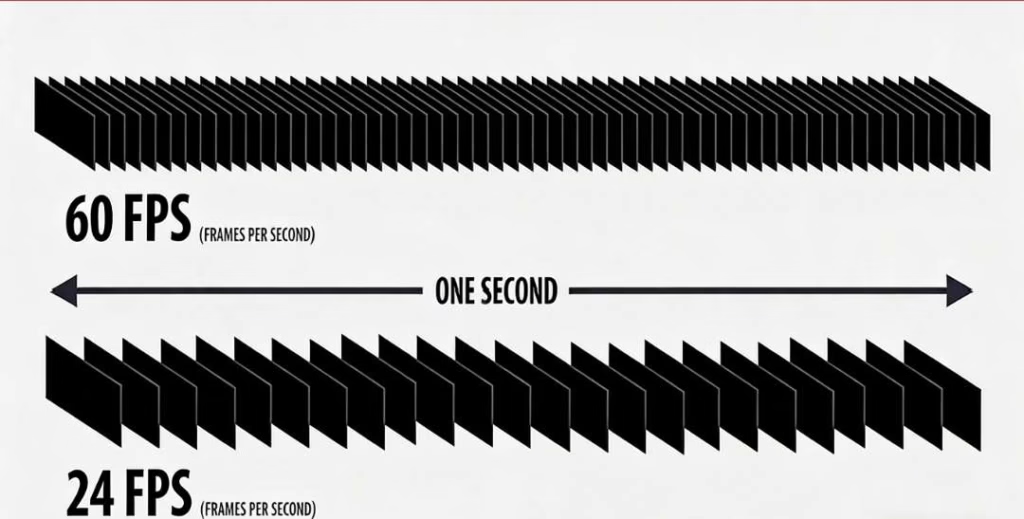
FPS stands for Frames Per Second. It measures how many unique images (frames) your source device—like a computer’s Graphics Card (GPU) or a camera—can produce every second.
Think of FPS like a flipbook.
Each page is a “frame.”
If you flip through 60 pages in one second, you are viewing animation at 60 FPS.
The faster you flip (higher FPS), the smoother and more fluid the motion appears.
FPS Comes from the Source, Not the Screen
Unlike Hz (which depends on the display), FPS depends entirely on the processing power of your device (CPU/GPU). A powerful gaming PC can generate more frames than a basic office laptop, resulting in smoother motion and sharper details during fast action.
Common FPS Standards in Industry:
24 FPS: The global standard for movies/cinema (creates a natural “cinematic blur”).
30 FPS: Standard for TV shows and live news broadcasts.
60 FPS: The gold standard for gaming and smooth YouTube videos.
120 FPS+: Used in high-end gaming and smartphones for creating slow-motion footage.
The Balance: Matching FPS to Hz
Too Low: If FPS is low, the video looks choppy or “laggy.”
Too High: If your FPS is higher than your screen’s refresh rate (e.g., 100 FPS on a 60Hz screen), the monitor can’t keep up. This can lead to “screen tearing,” where images look disjointed.
The Goal: For the smoothest viewing experience, your FPS should ideally match your screen’s refresh rate.
3. Hz vs FPS: What’s the Difference?
Many people confuse FPS (Frames Per Second) and Hz (Refresh Rate) because they both describe “speed.” However, they happen at opposite ends of the visual pipeline.
FPS is the Artist (Input): It’s how fast your computer draws the pictures.
Hz is the Canvas (Output): It’s how fast your screen displays those pictures.
Understanding this distinction is key to solving common issues like screen tearing in games or flickering on commercial LED displays.
3.1 Quick Comparison Table
| Feature | FPS (Frames Per Second) | Hz (Refresh Rate) |
| Role | Content Creation (Input) | Content Display (Output) |
| Controlled By | GPU, CPU, Console, Camera | Monitor, TV, LED Video Wall |
| What It Measures | Fluidity & Detail of Motion | Stability & Flicker Reduction |
| Upgrade Path | Buy a better Graphics Card / CPU | Buy a better Display / Screen |
| Key Benefit | Smoother animations & gameplay | Flicker-free viewing & Eye comfort |
| Relation | Ideally, FPS should match Hz | Limits the maximum visible FPS |
3.2 The Core Functionality: Source vs. Sink
FPS (The Source):
FPS is purely about performance power. It measures how hard your system (PC or Media Player) is working to render frames.
High FPS: Means smoother motion data is being sent to the screen.
Low FPS: Means the system is struggling, leading to “choppy” video.
Hz (The Sink):
Hz is a physical limit of the display hardware. It is the maximum number of frames the screen can show per second.
Crucial Note: If your game runs at 200 FPS but your monitor is only 60Hz, you are effectively only seeing 60 FPS. The extra frames are wasted because the “canvas” isn’t fast enough to show the “artist’s” work.
3.3 What Happens When They Don't Match?
The relationship between FPS and Hz determines the final visual quality. Here is what happens when they are out of sync:
Screen Tearing (FPS > Hz):
When your GPU renders frames faster than the screen can refresh, the screen might show a piece of the old frame and a piece of the new frame at the same time. This creates a horizontal line that “tears” the image.Solution: Use V-Sync or G-Sync, or upgrade to a higher Hz display.
Stuttering / Lag (FPS < Hz):
When your GPU is too slow and misses the screen’s refresh cycle, the screen has to show the same frame twice. This makes the video look jerky or laggy.Solution: Lower your graphics settings or upgrade your GPU.
3.4 Practical Applications: Gaming vs. LED Displays
For Gamers:
Gamers need both. High FPS ensures low input latency (your clicks register faster), while high Hz ensures you can actually see that smooth motion without blurring. Competitive gamers usually aim for 144Hz or 240Hz monitors paired with powerful GPUs.
For LED Display Users:
In the commercial LED industry, Hz is king.
While the video source (FPS) is usually standard (30 or 60 FPS), the LED screen itself must have a very high refresh rate (1920Hz or 3840Hz).
Why? Not just for smooth motion, but to prevent flickering under studio lighting or cameras. A high-Hz LED wall ensures that your brand looks professional and stable in every photo and video recording.
3.5 Hardware & Upgrades
If you are unhappy with your visual experience, you need to know which hardware to blame:
Video looks choppy/laggy? You likely need to upgrade your Source (Better GPU, CPU, or Video Processor) to boost FPS.
Motion looks blurry or flickers? You need to upgrade your Display (Better Monitor or High-Refresh LED Screen) to boost Hz.
4. How Are Hz and FPS Related?
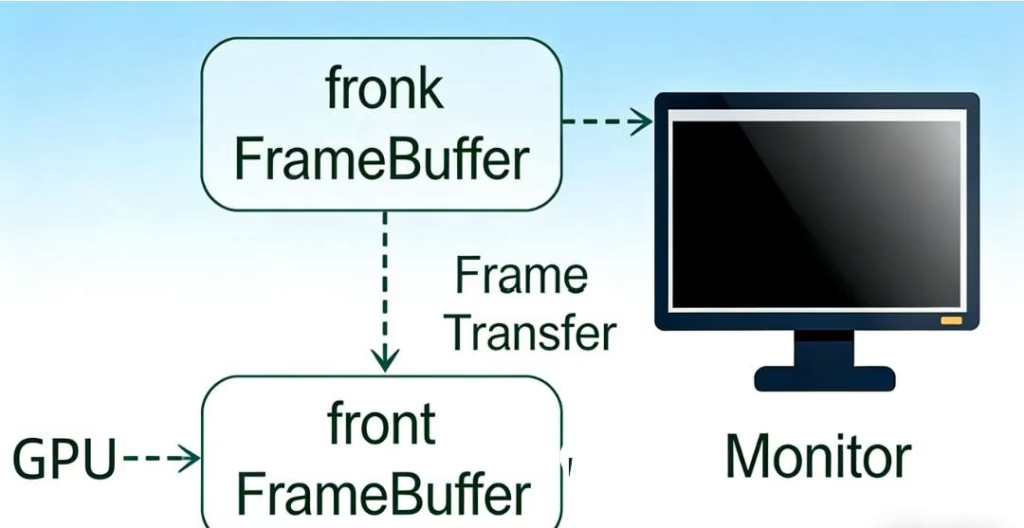
You can think of the relationship between FPS and Hz as a partnership between a Producer and a Consumer.
The Producer (GPU): Creates the frames (FPS).
The Consumer (Screen): Displays the frames (Hz).
For the smoothest motion, this partnership needs to be perfectly synchronized. Here is the technical breakdown of how they interact behind the scenes.
4.1 The "Frame Buffer" Process
To understand their relationship, we need to look at how images move from your computer to your screen. It involves a system called Double Buffering:
FPS (Production / Back Buffer):
Your Graphics Card (GPU) draws a new frame and writes it onto a hidden canvas called the Back Buffer. The speed at which it fills this canvas is your FPS.Hz (Display / Front Buffer):
Your Screen reads the completed image from the visible canvas called the Front Buffer and shows it to you. The speed at which it checks this canvas is your Hz.The Swap:
Once the GPU finishes drawing a frame in the Back Buffer, it swaps it with the Front Buffer so the screen can display it.
The Goal: The GPU finishes drawing the frame exactly when the screen is ready to refresh.
4.2 What Happens When They Don't Match?
In the real world, the GPU’s speed (FPS) rarely matches the screen’s fixed speed (Hz) perfectly. This misalignment causes visual artifacts.
(1) FPS > Hz (Oversupply)
The Situation: Your GPU is too fast. It renders 120 frames per second, but your 60Hz screen only refreshes every 16 milliseconds.
The Result: Screen Tearing.
The GPU swaps the buffer in the middle of a screen refresh. The screen ends up showing the top half of the old frame and the bottom half of the new frame at the same time. The image looks like it has been “torn” horizontally.Pros/Cons: While tearing looks ugly, high FPS (even on a 60Hz screen) reduces Input Lag, which is why competitive gamers often accept tearing.
(2) FPS < Hz (Undersupply)
The Situation: Your GPU is struggling. It only produces 45 FPS, but your screen refreshes at 60Hz.
The Result: Stuttering (Judder).
The screen is ready to show a new image, but the GPU hasn’t finished drawing it yet. The screen is forced to display the previous frame again. This repetition makes the motion look choppy, uneven, or delayed.
4.3 How to Fix the Mismatch?
Since mismatches are common, technology has evolved to force FPS and Hz to work together:
V-Sync (Vertical Sync): A software setting that limits your GPU’s FPS to match the monitor’s Hz. It fixes tearing but can cause input lag.
G-Sync / FreeSync (Variable Refresh Rate): Modern hardware solutions that allow the Screen to change its Hz dynamically to match the GPU’s FPS. This offers the best of both worlds: smooth motion with no tearing and no lag.
5. Hz vs FPS: Which One Matters More for Different Users?
Not everyone needs a 240Hz monitor or a 3840Hz LED wall. The importance of Hz and FPS changes entirely depending on whether you are aiming for a headshot in a game, watching a movie, or broadcasting a live event.
Here is the breakdown for different user groups:
5.1 For Gamers: Speed is Everything
Gaming is the only category where both High FPS and High Hz are critical. However, the priority shifts based on the type of game.
Competitive Shooters (CS:GO, Valorant, Overwatch):
Verdict: Priority on FPS & Hz.
Why: Players strive for 144Hz, 240Hz, or even 360Hz. High Hz isn’t just about smoothness; it significantly reduces Input Lag (the delay between your mouse click and the action on screen). High FPS allows you to see enemies split-seconds faster than opponents on 60Hz screens.
AAA Story Games (Cyberpunk 2077, RPGs):
Verdict: Balance is Key.
Why: You don’t need 240 FPS to enjoy a beautiful landscape. 60 FPS to 120 FPS on a high-resolution screen (4K) offers the best balance of visual fidelity and smoothness.
5.2 For Movie & Video Lovers: The "Cinematic Look"
Verdict: Hz Matters for Stability, FPS is Fixed.
The Standard: Almost all Hollywood movies are shot at 24 FPS. TV shows and News run at 30 FPS.
The “Soap Opera Effect”: You don’t want to force movies into high FPS (like 60 FPS interpolation). It makes films look like cheap home videos (the Soap Opera Effect).
Why Hz Matters: While the content is low FPS, a good display (like a 120Hz TV) is better at showing 24 FPS content smoothly without “judder” compared to a basic 60Hz screen.
5.3 For LED Display Buyers / Professional Use
Verdict: High Hz is Non-Negotiable.
The Context: LED video walls are often used in concerts, TV studios, and conferences where people will film the screen with smartphones or broadcast cameras.
Why Hz Wins:
To the Naked Eye: A standard refresh rate (1920Hz) might look fine.
To the Camera: Standard Hz causes black scanning lines and strobing effects.
The Solution: Professional LED displays (like Unify LED’s series) utilize 3840Hz or 7680Hz refresh rates. This ensures that every photo taken by your audience and every second of your live stream looks crisp, solid, and professional.
5.4 For Casual & Office Users
Verdict: Standard is Sufficient.
The Standard: 60Hz / 60 FPS is the global standard for office work, browsing, and emails.
The Upgrade: Moving to a 75Hz or 90Hz monitor can make scrolling through web pages and moving the mouse cursor feel noticeably smoother, reducing eye strain during long workdays, but it is not a strict requirement.
5.5 Quick Summary: What Should You Buy?
| User Type | Priority | Recommended Specs |
| Pro Gamer | Max Hz + Max FPS | 240Hz+ Monitor, High-end GPU |
| Casual Gamer | Visual Quality | 60-144Hz Monitor, Mid-range GPU |
| Movie Buff | Color & Contrast | 60Hz or 120Hz TV (OLED/QLED) |
| LED Display Buyer | Camera Stability | 3840Hz+ High Refresh Rate LED Wall |
| Office User | Comfort | 60Hz – 75Hz Monitor |
6. How Refresh Rate and Frame Rate Affect LED Display Performance
When investing in an LED video wall—whether for a church, a concert stage, or outdoor advertising—Hz and FPS determine the difference between a “good” screen and a “professional” screen.
Here is exactly how these two metrics impact the final visual performance of your LED display:
6.1 Visual Fluidity (The Audience Experience)
Role: FPS drives the motion; Hz delivers the motion.
The Problem: If your content source (FPS) is low quality, even the most expensive LED screen will look jerky. Conversely, if your LED screen has a low refresh rate, fast-moving text or objects (like a soccer ball) will look blurry.
The Result: High FPS combined with High Hz ensures that scrolling text (tickers) is readable and fast motion is fluid, without the “trailing” effect known as Motion Blur.
6.2 The "Camera Test" (Broadcast Compatibility)
To the Human Eye: A standard 1920Hz screen looks fine because of our eyes’ “persistence of vision.”
To a Camera: Cameras have faster shutter speeds. If your LED screen’s refresh rate isn’t high enough (typically 3840Hz or higher), your photos and live streams will show:
Black Scanning Lines: Ugly horizontal bars rolling down the screen.
Moiré Patterns: Strange wavy interference patterns.
Unify LED Standard: High refresh rate screens ensure your event looks perfect on Instagram, TikTok, and professional TV broadcasts.
6.3 Eliminating "Ghosting"
Ghosting is a visual artifact where a faint “echo” of an image remains on the screen for a split second after it has moved.
The Cause: Often caused by a mismatch where the LED driver chip (IC) cannot clear the electrical charge fast enough (Low Hz).
The Fix: A higher refresh rate helps discharge the pixels faster, ensuring crisp transitions between frames with zero ghosting.
6.4 Practical Scenarios: Matching Source to Screen
To get the best performance, your Video Processor plays a huge role in scaling the signal. Here is the math of real-world scenarios:
| Scenario | FPS (Source) | Hz (LED Screen) | Result |
| Ideal Match | 60 FPS | 3840Hz (High) | Perfect. Smooth motion, camera-ready, no flicker. |
| Low FPS | 30 FPS | 3840Hz (High) | Stable but Stuttery. No flicker, but motion isn’t fluid (limited by source). |
| Low Hz | 60 FPS | 1920Hz (Standard) | Risk of Flicker. Looks okay to eyes, but risky for cameras/phones. |
| Mismatch | 120 FPS | 60Hz (Input Limit) | Frame Dropping. The processor will discard half the frames; wasted bandwidth. |
Key Takeaway: For LED displays, always prioritize a High Refresh Rate (3840Hz+) hardware foundation. Then, ensure your content source provides at least 60 FPS for the smoothest playback.
7. Common Myths About Hz and FPS
There is a lot of misinformation out there. Let’s clear up the biggest myths preventing you from getting the best visual experience.
Myth 1: “The Human Eye Can Only See 30 FPS.”
The Truth: This is false. While standard movies are 24 FPS, human eyes are capable of perceiving motion artifacts up to 1000 FPS or more. This is why a 144Hz monitor feels noticeably smoother than a 60Hz one, even just moving the mouse cursor.
Myth 2: “You Don’t Need High Hz for Non-Gaming Use.”
The Truth: For LED Displays, this is the biggest mistake buyers make. You might not “see” the flickering of a low-Hz screen with your eyes, but it causes subconscious eye strain and headaches. Plus, your smartphone camera will definitely see it.
Myth 3: “High FPS is Always Better.”
The Truth: Only if your screen can handle it. Pushing 200 FPS to a 60Hz screen causes screen tearing. Balance is better than raw speed.
8. How to Check Your Refresh Rate and FPS?
Do you know what your current hardware is running at? Here is how to test it.
For PC/Monitor Users:
Check Hz: Go to Settings > System > Display > Advanced Display. You will see your refresh rate (e.g., 59.94Hz or 143.98Hz).
Check FPS: Use tools like the NVIDIA Overlay, Xbox Game Bar (Win+G), or software like MSI Afterburner while gaming.
For LED Display Buyers (The “Phone Test”):
You don’t need expensive equipment to spot a cheap LED screen.
Open your smartphone camera.
Switch to “Pro Mode” and set Shutter Speed to 1/1000 or faster.
Or, simply switch to “Slow Motion” video mode.
Point it at the LED screen.
Good Screen: The image remains solid and black-line free.
Bad Screen: You will see dark bars rolling down the screen or heavy flickering.
9. FAQ: Quick Answers about Hz and FPS
Generally, no. Refresh rate is a physical limit determined by the screen's hardware (IC drivers). You cannot use software to make a 1920Hz screen perform like a 3840Hz screen. That is why choosing the right hardware upfront is crucial.
Slightly, yes. A higher refresh rate requires the IC drivers to work faster, which can increase power consumption marginally. However, modern "energy-saving" LED displays (using Common Cathode technology) solve this issue efficiently.
For casual gaming, yes. But for competitive gaming (shooters like CS:GO), 60Hz is considered a disadvantage. 144Hz is the recommended starting point for serious gamers.
This is a "Moiré" or Refresh Rate mismatch. Your phone's shutter speed is faster than the LED screen's refresh cycle. To fix this, you need an LED screen with a high refresh rate (3840Hz+) or you need to adjust your camera's shutter speed settings.
10. Summary
Ultimately, the relationship between Hz (Refresh Rate) and FPS (Frame Rate) defines the gap between a standard display and a professional visual experience. While FPS dictates the fluidity of your content source, Hz determines the stability and broadcast integrity of your LED hardware.
For commercial integrators and event professionals, the “source” is often variable, but the “screen” must be absolute. Relying on standard refresh rates creates a risk of on-camera flickering and motion artifacts that can ruin a live stream or brand presentation. Prioritizing high-performance IC drivers and high refresh rates (3840Hz+) is the only way to ensure your video wall performs flawlessly under any condition.
Ready to Upgrade Your Visual Experience?
Don’t let hardware limitations compromise your content. At UnifyLED, we specialize in manufacturing high-refresh-rate LED solutions designed for flicker-free, camera-ready performance.
Contact UnifyLED Today to discuss your project requirements and discover the perfect balance of speed and stability for your next installation.
Reference:
https://en.wikipedia.org/wiki/Refresh_rate
https://en.wikipedia.org/wiki/Frame_rate
11. Recommend


Why is The LED Rental Screen Philippines Your Best Event Business Investment?
Maximize ROI with our LED rental screen Philippines guide. Learn P3.91 profit secrets, labor-saving setup, and DDP shipping. Contact our factory for 2026 wholesale prices!
How to Choose Typhoon-Proof Outdoor LED Billboards for Philippine Climate
Master the market with a durable Outdoor LED billboard Philippines. 2026 technical guide on typhoon-proof design, ROI analysis & factory-direct pricing for Manila & Cebu.

How to Choose the Best Church LED Screen in the Philippines?
Upgrade your worship with a high-quality Church LED screen Philippines. Guide for PH ministries on P2.5/P3 walls, 3840Hz for Facebook Live, and factory-direct DDP shipping to Manila & Cebu.